What’s new for entrepreneurship programs
Of everything we added to Mentornity in the last year, these matter most for your incubator or accelerator: startup tracking, mentor matching and events all the way to demo day. All of it is ready to use today.
- 72updates
- 2iOS and Android apps
 From the Mentornity team
Watch the updates in 5 minutes
The highlights on the real screens, in one video.
The video loads from YouTube (youtube-nocookie.com) only when you press play.
Highlights
The updates that change your program most, on the real screens.
-
Mentornity AI
Your cohort’s assistant. It finds startups falling behind and suggests mentors. Nothing changes without your approval.
- Cohort health and reports
- Mentor suggestions for startups
- Announcement and e-mail drafts
-
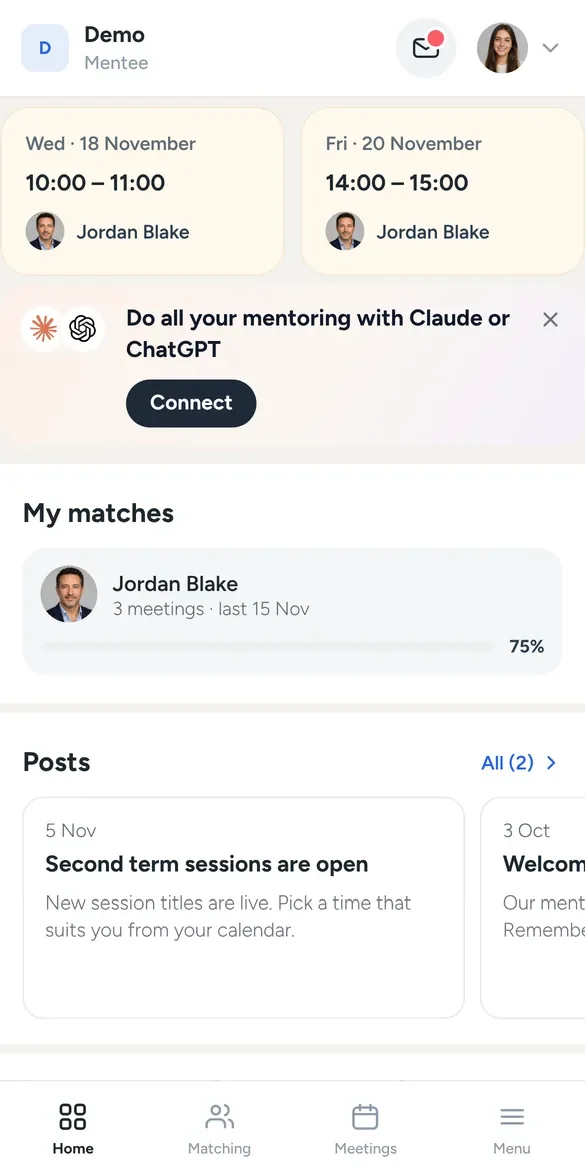
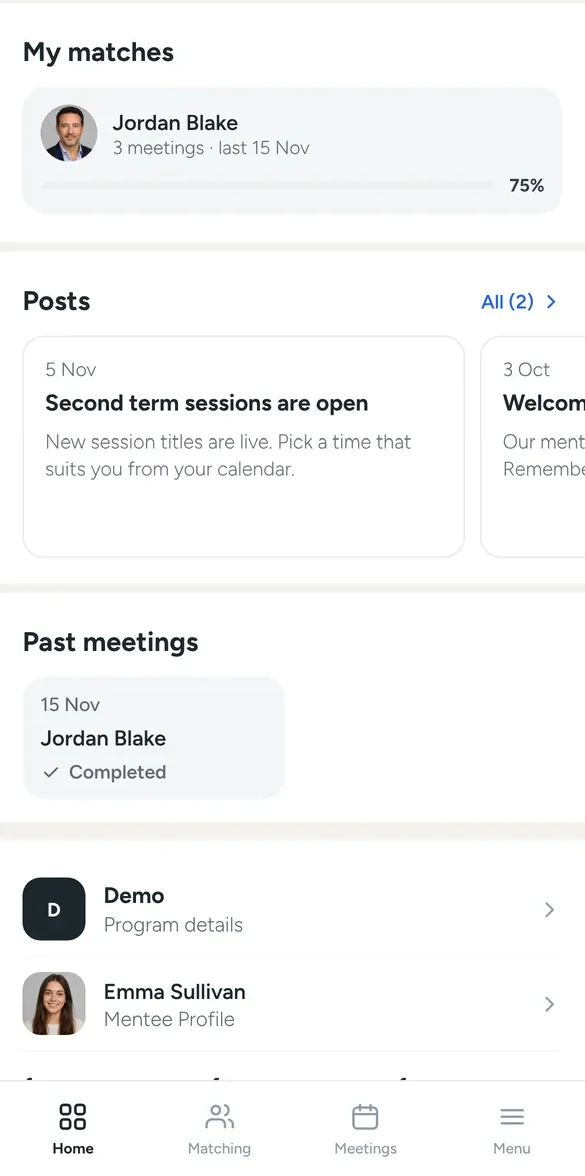
Mentornity Mobile Apps
Founders and mentors follow the program on their phone. Notifications arrive instantly.
- Meetings and tasks in your pocket
- Message and meeting notifications
- On the App Store and Google Play
Details -
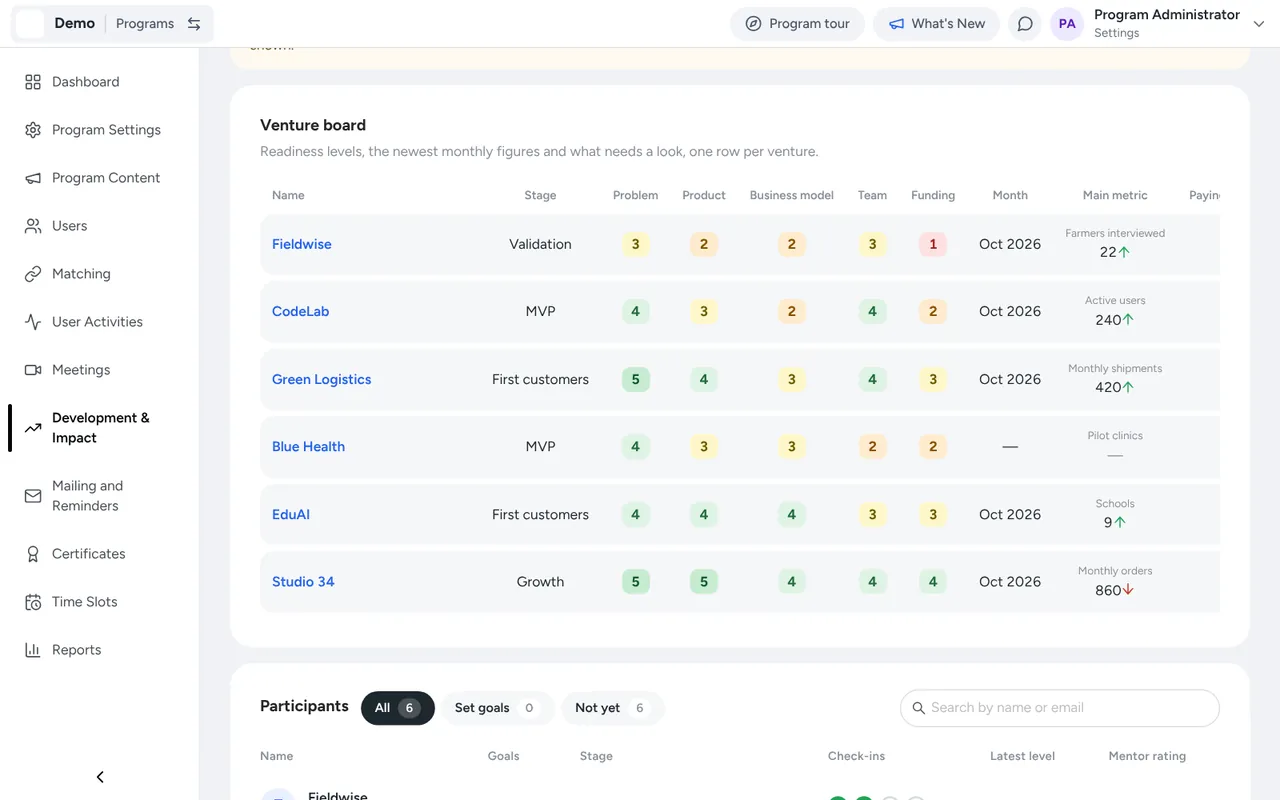
Startup tracking
The startup is the unit. Stage, goals and weekly pulse in one table.
- Stages and program goals
- Readiness levels and weekly pulse
- Startup table and reports
-
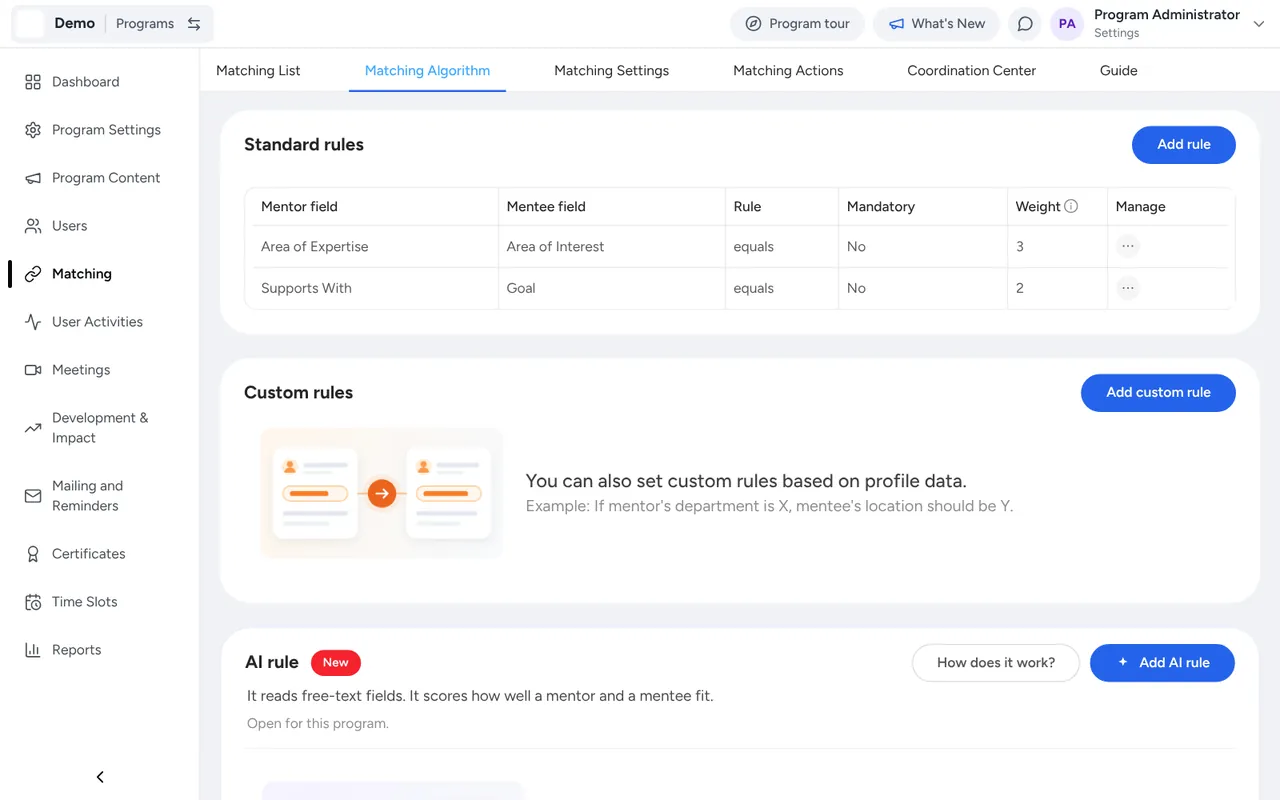
Rebuilt mentor matching
Match startups with the expertise they need. Your own algorithm on sector, stage and topic.
- Sector and stage rules
- Side-by-side mentor comparison
- Coordination Center
-
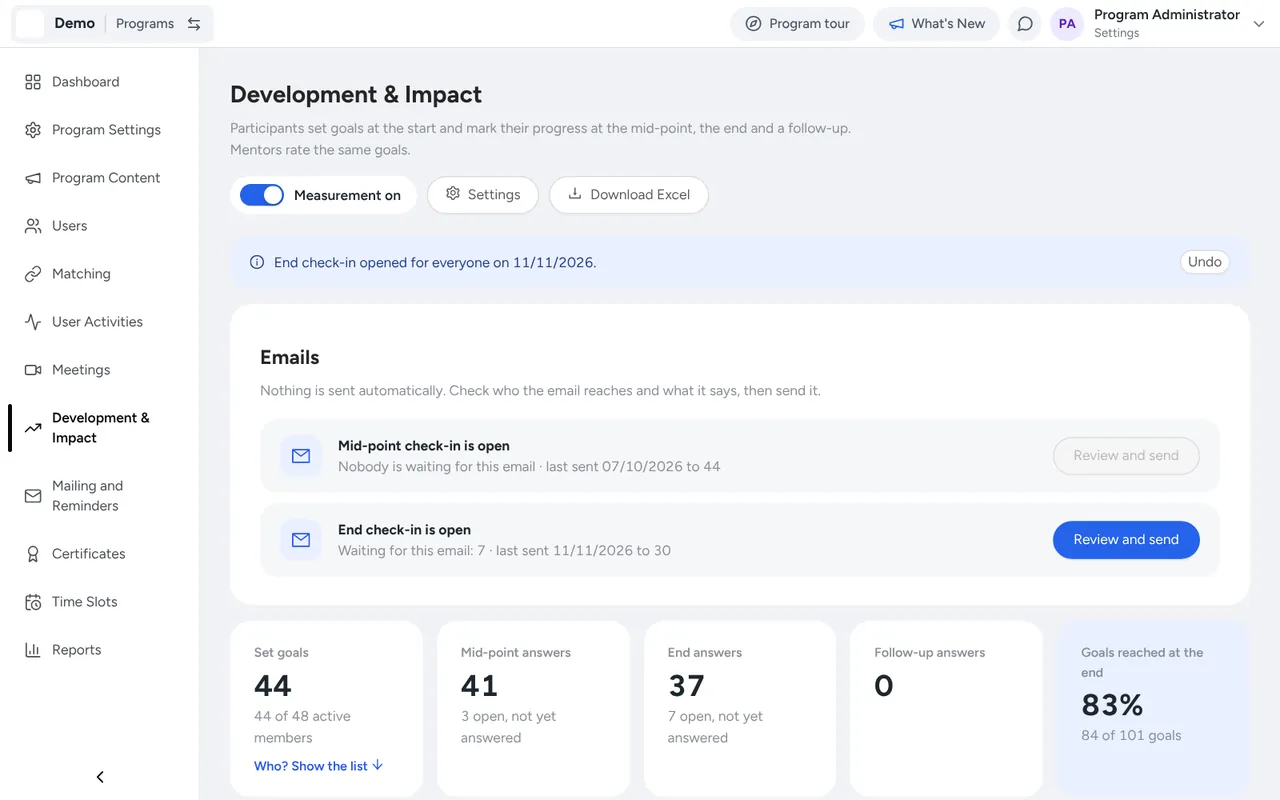
Development & Impact
Show founders’ progress in numbers. Results are ready for funders.
- Quick setup with ready-made sets
- Runs without extra work
- Two views on every goal
-
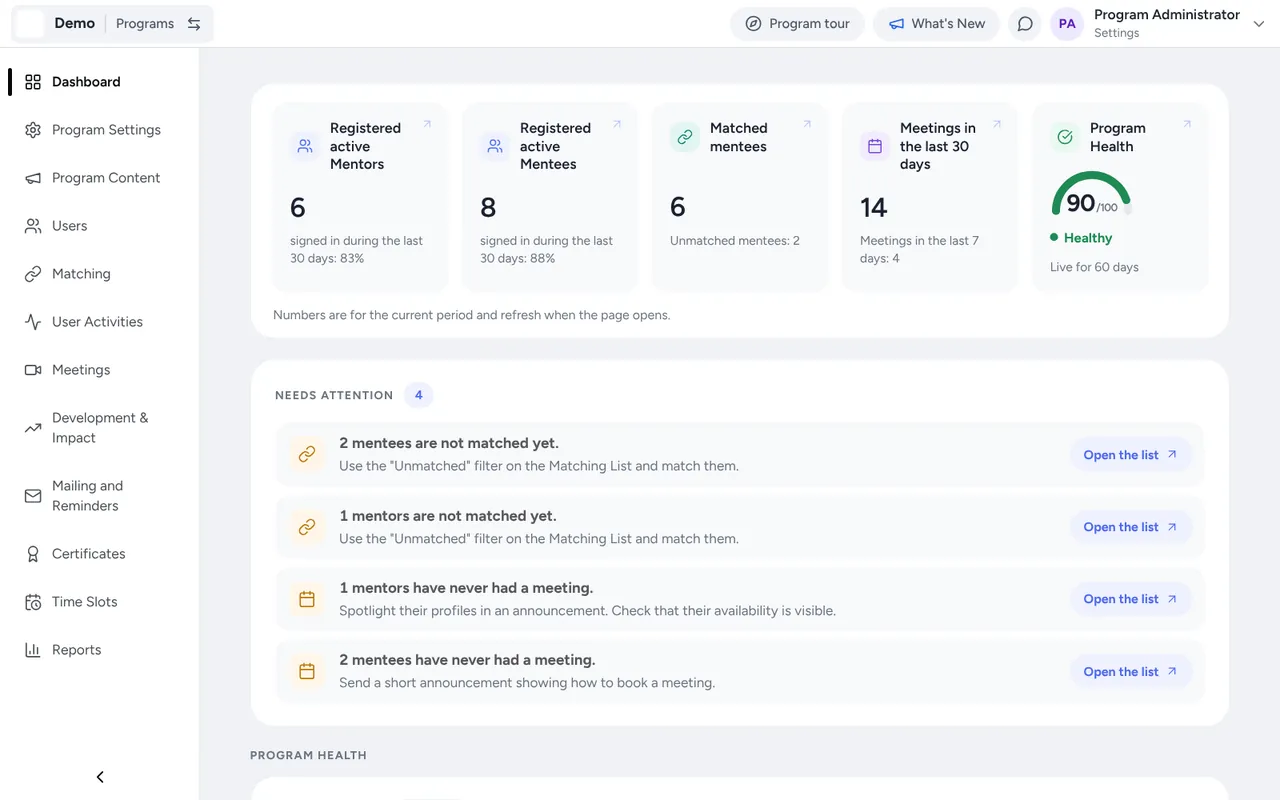
Fully redesigned screens
The panel home is now a live control room. Health score and startups who need attention on one screen.
- Live control room and health score
- New settings and meeting pages
- Every program on one board
-
Mentoring Tools
With 30+ ready tools, sessions focus on what the startup needs. Mentor time turns into progress.
- 30+ tools, 9 built for startups
- Founders arrive prepared
- Mentor time turns into real progress
-
Mentornity Academy
Mentors build skills in short courses. Those who pass earn a shareable badge.
- Short lessons and exercises
- Exam
- Shareable badge
-
To-do lists
Write tasks and checklists once. See which startups have finished.
- Tasks, checklists and training
- Everyone ticks off their own card
- Who has finished, at a glance
-
Next steps after every meeting
Every match shares one list of next steps. A reminder goes out before the due date.
- One shared list of next steps
- A reminder before the due date
- A record of meetings held
-
Program content and templates
Start a program from a template or an earlier one. The next cohort is set up in one step.
- New program from a template or with Mentornity AI
- 45 ready development and impact sets
- Copy the next round in one step
-
Our own video calls
Join sessions inside Mentornity in one click. An investor without an account joins with a code.
- No account or licence needed
- Invite an investor with a code
- Meetings are recorded as held automatically
-
Super Meeting Planner
The mentor plans all remaining sessions in one go. The startup gets steady support every month.
- Through to the program’s end, in one go
- Both calendars read, no clashes
- The whole plan shown before anything is created
-
Claude, ChatGPT and MCP
Connect Claude or ChatGPT to Mentornity. Just say “book me the best mentor for sales”.
- Find a mentor and book in one sentence
- A startup briefing for the mentor
- Asks before changing anything
-
Run Events for Your Program
Open demo days and pitch trainings from the panel. Teams sign up together.
- Demo days and office hours
- Capacity and waiting list
- Sign-up as a team
-
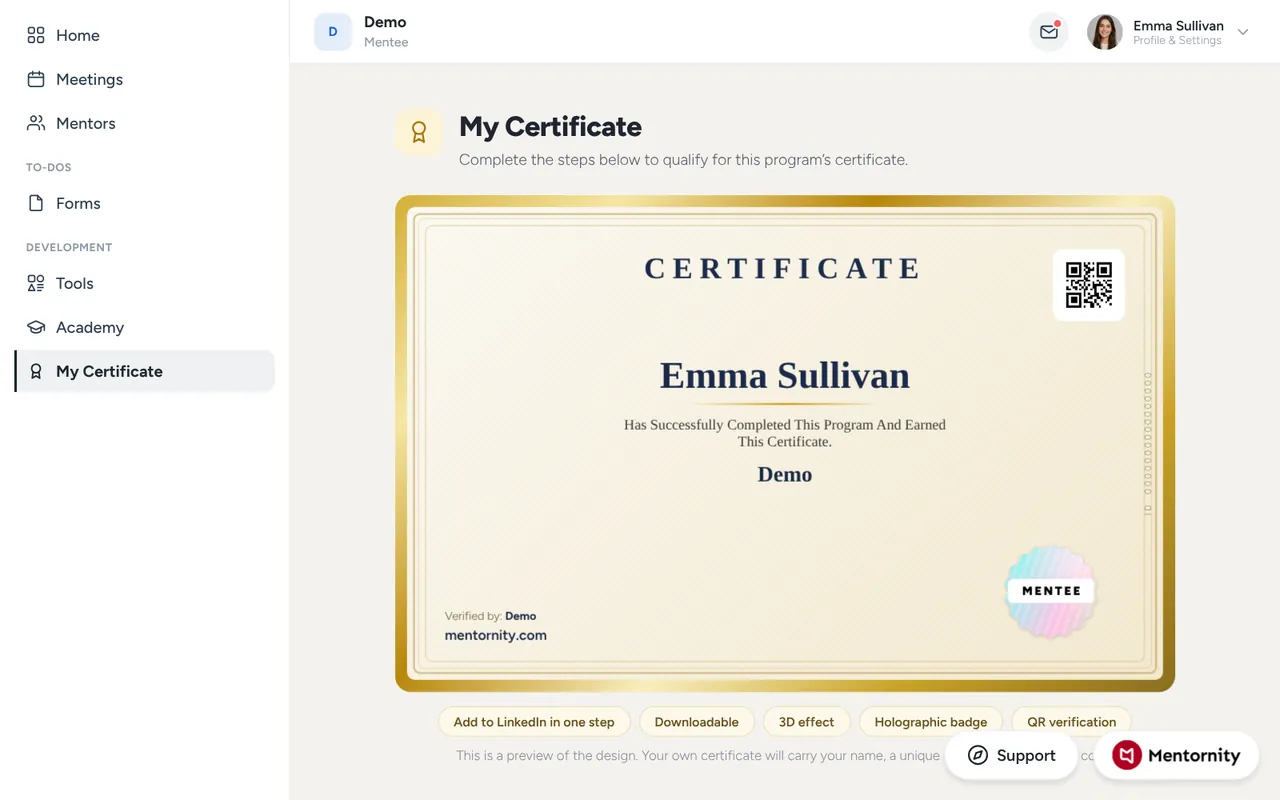
Certificate System
Give graduating founders a QR-verified certificate. It can go on LinkedIn.
- Graduation certificate verified by QR
- Earned automatically by your rules
- Shared on LinkedIn




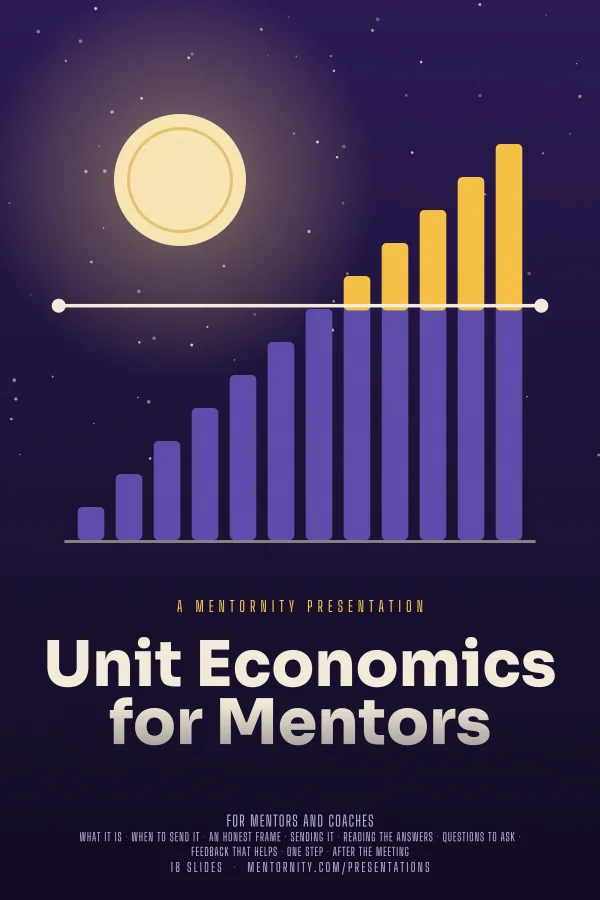
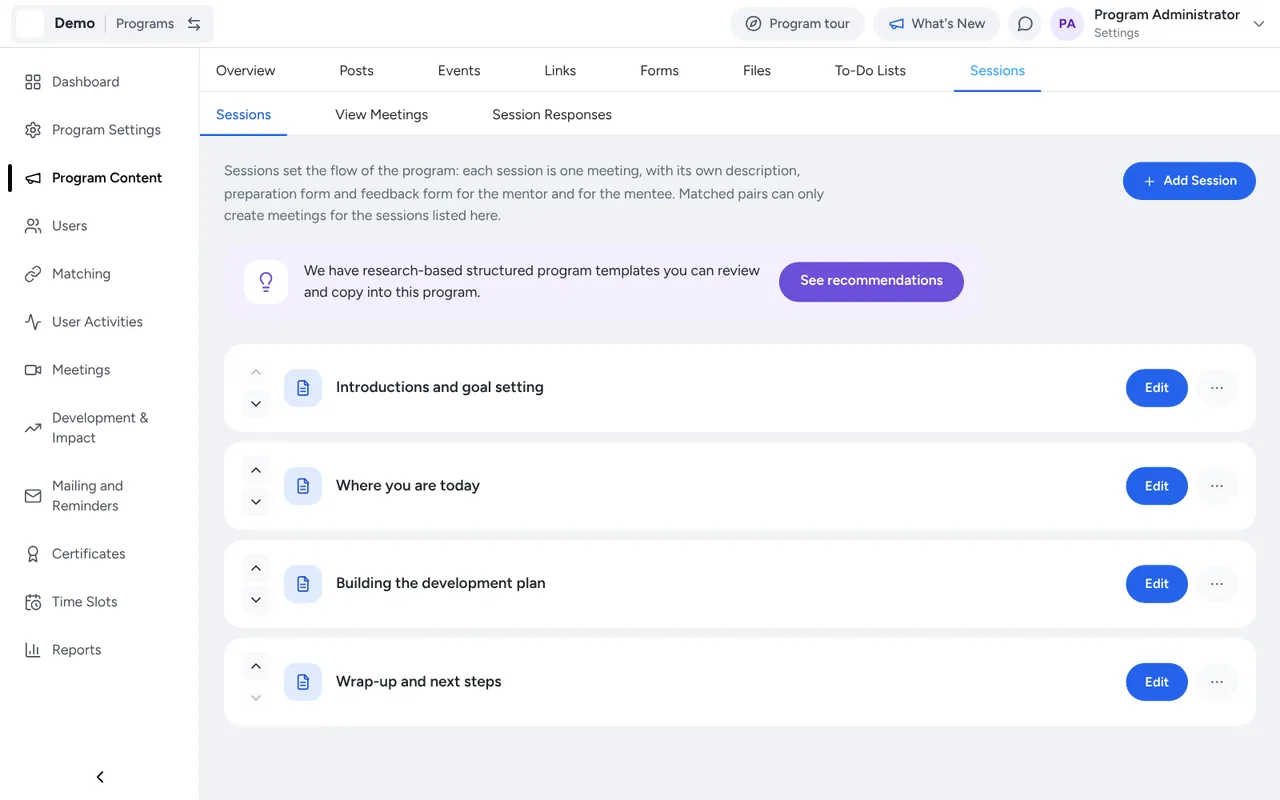


A year of updates
Each card has its own page on What’s New.
Mentor matching and sessions
-
Messaging as a startup team
A startup is a team, not a person: every co-founder sees the message to the mentor, and who wrote it stays visible.
-
Invite Someone Without an Account to a Call
Invite an investor or a teammate without an account to the call with a meeting code.
-
Mentees Can Add Their Own Time Slots
Founders add their free hours and the mentor books a session in one of them.
-
Program Calendar: Every Mentor’s Hours on One Screen
Every mentor’s office hours on one screen: who is free when and which slots are taken.
-
AI Rule: A Third Rule Type That Reads Free Text
The algorithm reads the need a startup wrote and the experience a mentor wrote and scores the fit, so the right expert reaches the right startup.
Running the cohort
-
Mailing System: Targeted Email From Your Program Data
Every list in the panel is an e-mail audience: startups that have not met, mentors without open hours, teams that skipped the weekly pulse.
-
Coordinators Assigned by Rules
Assign program managers or sector leads to startups automatically, by rule.
-
Phone, Date and File Questions in Forms
Add phone, date and file questions to your application form and collect the pitch deck with the application.
-
Corrections in applications and names
A misspelled name or e-mail in an application is no longer permanent; fix it before you accept.
-
Renewed Reporting
View cohort reports without downloading them, with charts and PDF, Excel or CSV export.
-
Program Settings, Redesigned
Settings pages are easier to read, and group programs get a new privacy setting.
Founder and mentor experience
-
Live messaging
Messages arrive without a page refresh, with typing and seen marks and file sharing.
-
Topic posts
Open a topic and let founders share their experience with pictures. Peer support inside the cohort grows.
-
My Programs: Every Program on One Dashboard
A founder in several programs sees upcoming sessions and open tasks on one page.
Ecosystem, security and brand
-
Customer panel
One panel for organisations running several cohorts or programs: every program, every startup and the matches that need attention.
-
White label in the customer panel
Run the program under your own brand and domain, set up from the customer panel.
-
Admin roles
Give your program team and partners the role that fits; you choose who sees what.
-
Detailed Logs: Who Changed What, and When
Every admin action is logged: who changed what, and when.
-
Program Agreements
Publish confidentiality and participation agreements; founders and mentors accept them before they join.
-
Admin Panel in Spanish and French
The admin panel now also runs in Spanish and French, for international cohorts.
Let’s have a short call about the updates
If you like, we can go through these updates with your program in 15 minutes and answer your questions.
What do you think, and what do you need?
Write to us here with your thoughts on the updates or anything your program needs; our product team reads every note.
If anything needs an answer, we’ll get back to you by e-mail.
It could not be sent. You can e-mail us directly: info@mentornity.com
Mentornity AI
Your cohort’s assistant. It finds startups falling behind and suggests mentors. Nothing changes without your approval.
Mentornity AI opens from the button at the bottom right of the admin panel. Ask in plain words, as you would ask a colleague who knows the program. It answers with counts, lists and charts, and when something should change it puts the change on a card: what will happen and who will be told. The change runs only when an admin presses Approve, through the same screens and permissions as if they had done it by hand.
What’s in it
- Program health and reportsLogins, meetings, quiet matches, survey results, pending applications, certificates and Development & Impact, with charts. At the end of a term it writes the impact report.
- MatchingScores candidates for a person by your program’s matching rules, proposes a match, ends one or answers a waiting match request.
- Applications and membersSorts applications by the rule you give it and accepts or archives them together. Invites new members, resends invitations, corrects a profile answer and changes a member’s role.
- Emails, posts, events and to-do listsDrafts an email for exactly the right people (who has not logged in, who has no match, who has not met), a post for the feed, a program event or a to-do list.
- Settings and textsChanges matching rules and limits, meeting and notification settings, the meeting plan, certificate rules and the welcome and closing texts.
- Scheduled tasksRuns recurring work, such as a summary of new applications every Monday. Within rules you set, it can accept, archive or send an email without waiting.
- Every change on a cardThe card says what will change. If the record changed in the meantime, the approval is refused. Steps that cannot be undone, such as removing a member, need a second click.
- Names stay in the panelThe model sees members under aliases and never their contact details. Names are put back only in the answer the admin reads.
- Shared by the program teamAll admins of the program see the same conversations, and every message shows who wrote it.
- Access and creditsMentornity AI is switched on per organization and runs on credits; starter credits come with it. Programs without access see what it does and can ask for it from the same button.
- Sets up a new programLearns the program’s type, audience and shape from a few questions and prepares a plan card. Approve it and the program is created.
- Your own API keyWorks with your organization’s own Anthropic API key instead of credits too.
- Reports and infographicsThe reports and infographics it makes are kept. Download them as PDF or Excel, or have them made again.
What admins ask
Where
Admin panel → Mentornity AI button at the bottom right. Without access: the same button → Request access.
Mentornity Mobile Apps
Founders and mentors follow the program on their phone. Notifications arrive instantly.
Participants sign in with the account they already use and find their programs, messages, meetings and to-dos in the app. New messages and meeting changes arrive as phone notifications.
What’s in it
- Same account, same programsParticipants sign in with their usual account. What they see on the web is in the app.
- Notifications on the phoneNew messages, meeting changes and program reminders arrive as phone notifications.
- Meetings on the goA video meeting keeps its sound when the phone switches to another app.
- Always up to dateNew features reach the app together with the web, with nothing extra to install.
Startup tracking
The startup is the unit. Stage, goals and weekly pulse in one table.
In group programs Development & Impact now measures the venture, not the individual. You choose the program type and how ventures join it. Each venture picks its stage and sees ready goals that fit that stage. Stage changes are kept, so you see how many ventures were at each stage at the start and now.
What’s in it
- StagesIdea, Validation, MVP, First customers and Growth. The report says how many ventures moved on to a later stage.
- Programme goalsUp to three goals every group carries: written, milestone or number. Groups add their own goals next to them.
- Readiness and a weekly pulseAt each check-in a venture picks a level from 1 to 5 for every dimension. If you want, it is asked once a week “How was this week?”, and two hard weeks in a row or a request for help show on the table.
- Venture table and reportsOne row per venture: readiness levels and what needs a look. The cohort report, executive summary and venture catalogue download as Excel or PDF; reports that leave the organization hide small cells.
Where
Admin panel → Development & Impact → Set up measurement → Venture tracking. For ventures: My development in the menu.
Rebuilt mentor matching
Match startups with the expertise they need. Your own algorithm on sector, stage and topic.
The matching experience has been renewed end to end. Compare candidate matches with all their details side by side, build your own algorithm in the panel, and track every action.
What’s in it
- Side-by-side comparisonCompare all details of both sides on a single screen while matching.
- Your own algorithmDefine matching rules and weights in the panel; suggestions are scored accordingly.
- Matching actionsEvery created, completed or rejected match is on record; add notes to any of them.
- Coordination CenterTrack matches by their meeting activity and spot stalled matches instantly.
- Coordinator roleAssign coordinators to matches; they follow up from their own panel.
- Group supportGroup programs get the same experience: comparison, actions and coordination.
Where
Left menu → Matching
Development & Impact
Show founders’ progress in numbers. Results are ready for funders.
A satisfaction survey tells you whether people liked the program. The real question is whether they changed. Development & Impact answers it: each participant sets their own goals at the start and marks their progress along the way, and their mentor rates the same goals. You get evidence of impact you can show to leadership, sponsors and stakeholders. The best way to measure your program’s impact and your participants’ growth is now live.
What’s in it
- Quick setup with ready-made setsPick the institution type, the audience and the program goal, and the panel suggests the best-fitting statements from 45 ready-made sets. A starting point for every program, from new hire onboarding to startup programs.
- Runs without extra workMidpoint, end and follow-up check-ins open on time for each participant, and participants are told by email. No reminder lists to keep, no survey links to send.
- Two views on every goalYou see each participant’s self-assessment next to their mentor’s rating, so results rest on two perspectives, not one. Mentees’ notes and statement answers stay hidden from mentors.
- Results ready for your reportGoal attainment, the change in each development area and the participant list on the same screen. The number of people behind every figure is shown, and you can download the list as Excel for your report.
- Spot risks earlyParticipants who have not set goals or answered a check-in show up on the Program Health card and on the admin home page, so you can act before the program ends.
- Ready in new programsPrograms created from a template start with measurement on. In existing programs you set it up in a few steps from the Development & Impact page.
Where
Admin panel → Development & Impact → Set up measurement. For participants: My development in the menu.
Fully redesigned screens
The panel home is now a live control room. Health score and startups who need attention on one screen.
The admin home page has been redesigned from scratch. A guide generated from your program settings, live statistics and the Program Health score show the state of your program at a glance.
What’s in it
- Settings-driven guideContent is generated from your program configuration; disabled features are never explained.
- Live countersMentor, mentee, match, meeting and application counts come from live data.
- Click to drill downClick any number to open people lists and profile cards in a modal.
- Program Health scoreYour program is scored 0-100, with a score ring and an 8-week trend chart.
- Personal advice engineThe advice engine suggests steps tailored to your program to raise the score.
- In 6 languagesGuide and advice come in 6 languages; your custom role names are applied automatically.
Where
Left menu → Home
Mentoring Tools
With 30+ ready tools, sessions focus on what the startup needs. Mentor time turns into progress.
The match page now has a Tools card. The mentor picks a tool from the library, adds a short note if they like and sends it. The mentee fills it in step by step. When the answers are submitted, the mentor gets an email. Both see the answers, the charts and the discussion questions together.
What’s in it
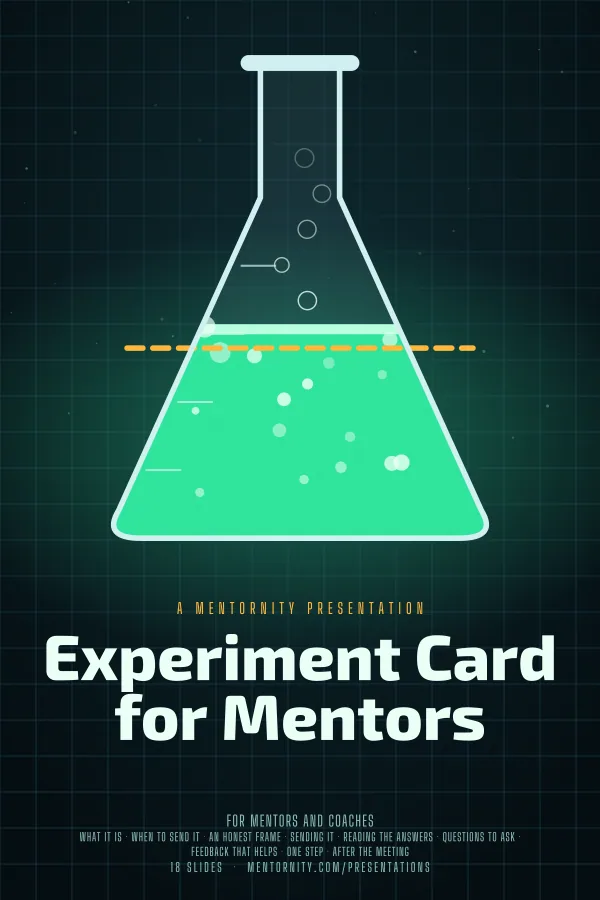
- 26 tools in six themesWorking together, self-knowledge, goals and action, career and network, venture, and reflection. The Working Agreement, the Balance Wheel, the Development Plan and the Experiment Card are a few of them.
- Tried before it is sentThe mentor sees a preview of every tool. With Try it as the mentee they fill it in themselves to see how it feels. The trial saves nothing.
- One task per screenThe mentee fills the tool in step by step and sees the answers once more before sending. Waiting tools show on the home page and as a counter in the menu.
- Answers start the conversationBoth see the answers and the discussion questions and can comment on an answer. The mentor keeps a private note and can ask for the tool to be filled in again.
- Only the matched mentor and mentee see the answersThe mentor sees the answers only once they are submitted, never a draft. The program team does not see the answers.
- You choose which tools are onIn Program Settings, on the Mentoring Tools tab, you turn all tools off or hide single tools.
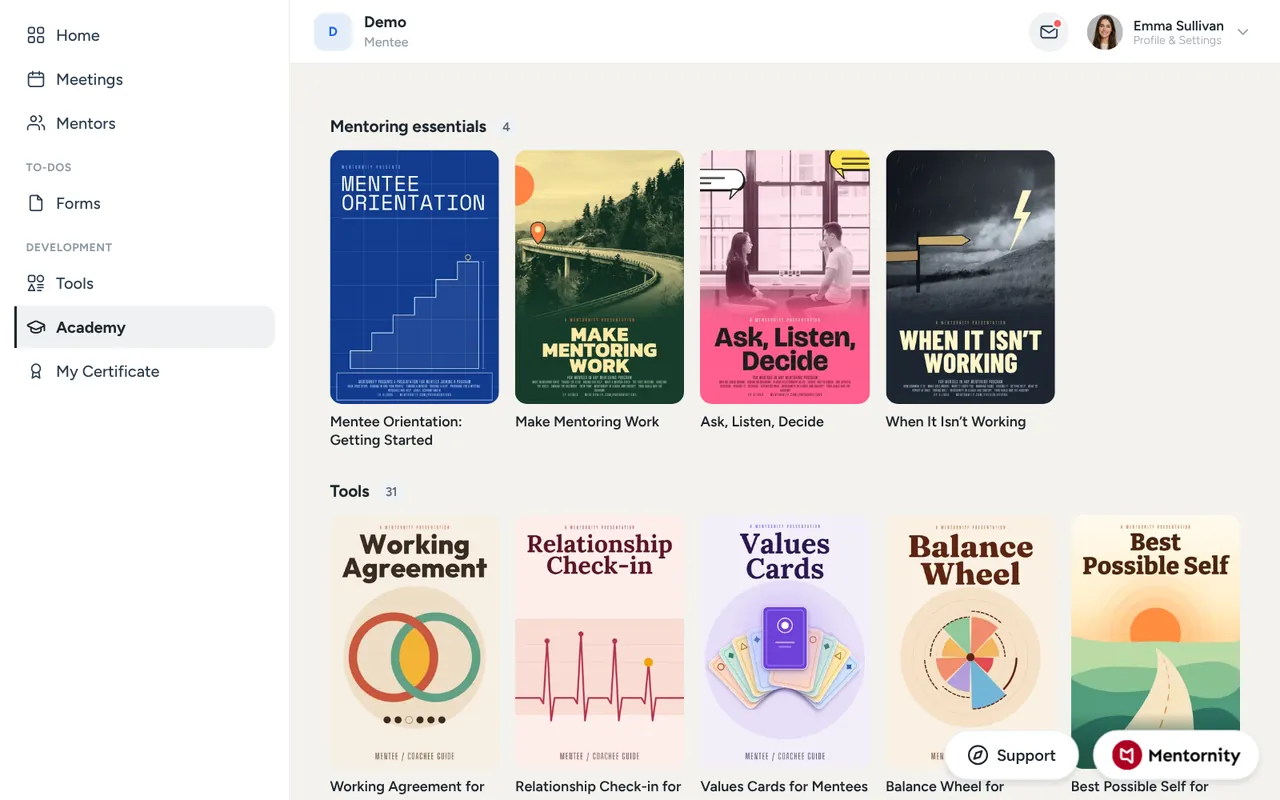
- A presentation for every toolThe Tools page on mentornity.com explains why each tool works and where it comes from. Every tool has its own presentation for mentors and for mentees.
Where
Platform → match page → Tools → Assign a tool. For members: Tools in the menu. Admin panel → Program Settings → Mentoring Tools.
Mentornity Academy
Mentors build skills in short courses. Those who pass earn a shareable badge.
The Academy sits in the members’ left menu. It holds decks and guides for the program’s type and the member’s role. Mentors have seven competency badges: each badge moves through short decks and practice rounds and ends with an exam. A mentor who passes earns the badge, shares its page and adds it to LinkedIn.
What’s in it
- Decks and practiceEach badge is made of modules. Under every badge the mentor sees their progress: how many decks and practice rounds are done.
- The exam20 questions, 30 minutes, pass mark 80. Scenario questions score the best and the worst option separately. There are three tries, 24 hours apart.
- A badge to shareA badge is valid for two years. The mentor chooses what the public badge page shows. The badge can be added to LinkedIn.
- A mark beside the nameBadge holders get a small mark beside their name: on the profile card, in the mentor list and in the participant directory.
Where
Platform → left menu → Academy.
To-do lists
Write tasks and checklists once. See which startups have finished.
Everything you expect from your members (onboarding steps, tasks, training modules, documents to collect) used to live scattered across emails and meeting notes. Now it lives inside the program: you write the items, members see and tick them on their program home, and behind the scenes you watch, live, who has started, who is in progress and who has not touched it at all. Not just for the mentoring flow; for anything that can be put in order. It guides, it never gates: nobody is ever blocked anywhere.
What’s in it
- Build the list in minutesA title, a rich description (bold/italic, links, bullets, images, YouTube) and as many items as you need. Every item can carry its own short description too.
- Role-based checklistsA list can go to everyone, to mentors only or to mentees only. A mentor readiness list, a mentee onboarding path and program-wide tasks live side by side in the same program, and nobody sees an item that is not theirs.
- Deliver training step by stepEvery item carries its own description, and that description is rich text: embed a video, link a document, add an image. The list becomes a training path people work through in order, and you can see who is on which module from the same screen.
- Deadlines that respect cohortsSet a fixed date, or say “14 days after joining”. With the second, every member’s deadline counts from their own join date, so you never re-date anything by hand when a later group arrives.
- Three states at a glance: completed · in progress · not startedMembers no longer only say “done”; they can also say “I’m working on it”. So you can tell instantly whether your list is being ignored or simply is not finished yet. The three numbers always add up to your audience.
- Which item are they stuck on?Expand the row: completed / in progress / not started for every item, plus a progress bar. Instead of “194 people have not finished”, you can say “they are stuck on the availability step”.
- From a number to the people, in one clickClick any number to list the people behind it, switch between the three states, and see who marked it and when.
- Click a person, open the whole profileClicking a name opens their contact details, your program’s custom fields, their group and links in one modal, with their own state on that list, dates included, right at the top.
- The numbers are never staleCompletion is never stored as a frozen flag; it is always derived from the list’s CURRENT items. Add an item to a live list and members who had finished will see it as open again. The editor warns you before that happens.
- Genuinely easy on the member sideA card on the program home plus its own page. One click on the ring next to an item title marks it done. Descriptions sit behind a one-line preview for anyone curious. Members with unfinished work get a shortcut button with a red badge.
- Never a barrierA to-do list locks no page, redirects nobody and nags no one. The point is to show the way, not to apply pressure.
A few things you could build with it
Where
Admin panel → Contents → To-Do Lists · Members: program home and the To-Do Lists page
Next steps after every meeting
Every match shares one list of next steps. A reminder goes out before the due date.
Whether a meeting counts as held in reports now follows your program’s rule. An hour after a meeting ends, the side you choose gets a one-tap “Did this meeting take place?” question. Meetings that were not held or stayed unconfirmed are left out of every count. A mentor and mentee who met outside the platform record the meeting afterwards.
What’s in it
- A meeting status ruleBy the calendar, Sign or confirmation, or Participants only. The mentor, the mentee or both answer. New programs start with Sign or confirmation.
- A status on every meetingPlanned, Awaiting confirmation, Held, Not held, Unconfirmed or Canceled. A meeting with no answer in 7 days becomes Unconfirmed.
- Add past meetingBoth sides can record a meeting that already happened and correct its date, whatever the meeting settings say. It is silent: no invitation, no link and no calendar entry.
- Shared next stepsThe meeting, tool and match pages share one list: what, who, by when. Both sides add and tick items, and the owner is reminded the day before it is due.
Where
Admin panel → Program Settings → Meeting Creation → Meeting status. For members: match page → Add past meeting.
Program content and templates
Start a program from a template or an earlier one. The next cohort is set up in one step.
You can create a copy of your program from the Programs page. Settings, forms, rules and agreements carry over to the new program.
What’s in it
- One-step copyGive the program a name and address; the copy is ready in minutes.
- Structure preservedProgram settings, application forms, matching rules and agreements are copied.
- Members stay behindNo user data is copied; the new season starts clean.
- Manage instantlyWhen the copy is created, you enter it as an admin right away.
Where
mentornity.com/programs → Clone
Our own video calls
Join sessions inside Mentornity in one click. An investor without an account joins with a code.
We have launched Mentornity’s own video call system. When “Video Call (in-platform)” is chosen as the meeting location, the call opens in the browser, on your program’s own address (mentoring.yourcompany.com/video-call/…). No third-party app, membership, time limit or account linking is required. It is now the default option for new meetings; Zoom, Google Meet and Jitsi remain available whenever you want them.
What’s in it
- One click, zero setupNothing to download, nothing to sign up for: press “Join Meeting” and the call opens in the browser, on mobile browsers too.
- No time limitNo 40-minute cap, no “free plan” warnings, no scramble to reconnect; the call lasts as long as you need.
- No integrations, no account linkingMentors no longer need to connect a Zoom or Google account. Mentornity generates the link the moment the meeting is created.
- On your own domain, with your brandFor white-label programs the call opens on your own domain; invitation and reminder emails carry the same link.
- A professional call experienceScreen sharing, in-call chat, background blur or colour; video quality adapts automatically on weak connections and the call reconnects by itself after a drop.
- Secure and hosted in EuropeOnly the meeting’s participants and program admins can enter; connections are encrypted and the servers are in Germany.
- Your voice after every callA short feedback screen appears when the call ends; your ratings and notes help us improve the system together. Available in 6 languages.
- Zero work for adminsNo settings, no switches: the feature is on for every program. “Video Call (in-platform)” is preselected in the meeting forms; the other options stay right there.
Where
Create / edit meeting → Meeting location → Video Call (in-platform) · Mentors and mentees: “Join Video Call” on the meeting page
Super Meeting Planner
The mentor plans all remaining sessions in one go. The startup gets steady support every month.
Mentors open Super Meeting Planner from the home page or from the Mentees or Meetings page. They choose who to plan with, how often, which days and what time. The planner finds times when both sides are free and shows every meeting before it creates anything. When the mentor confirms, the meetings are created and invitations go out as usual. If you allow it, mentees plan their meetings the same way.
What’s in it
- The program sets the rhythmIn Program Settings you choose the program duration, the target frequency and the number of meetings per match. A program can be ongoing, a single term or made of periods, and the planner ends the meetings accordingly.
- Locked or open valuesIf you lock the values, they are used as they are. If not, they are starting values and members choose their own frequency, days, time and gap between meetings.
- The plan is shown firstEach meeting says whether it fits both availabilities. Members remove the meetings they do not want. Meetings that do not fit are listed with the reason.
- Meetings are created the usual wayThe planner creates the meetings one by one. Meeting limits, conflict checks, emails and calendar sync work as before.
- Replanning deletes nothingMembers can move the upcoming meetings they created to new times. The planner never deletes a meeting.
- Other hours only with consentMembers can turn off meetings outside the hours they publish. Then the planner only suggests their own hours.
Where
Admin panel → Program Settings → Meeting Creation → Super Meeting Planner. On by default in new programs created from a template.
Claude, ChatGPT and MCP
Connect Claude or ChatGPT to Mentornity. Just say “book me the best mentor for sales”.
Mentornity is in Claude’s connector directory, and its MCP server works with any assistant that supports remote servers. A member connects once, signs in with their Mentornity account and chooses whether the assistant may only look or may also act. From then on they ask in their own words: what is coming up this week, find a free time with my mentor and book it, plan my meetings for the month. Before any change the assistant shows what will happen and goes ahead only after a yes.
What’s in it
- Meetings and availabilityBooks, moves and cancels meetings, finds free times in a mentor’s hours, opens and blocks hours across programs, and plans many meetings at once around both calendars.
- Profiles and preparationReads the profiles and program answers of matches and teams, the shared meeting notes and the before and after meeting forms, and suggests how to prepare.
- MatchesIn programs where mentees choose, mentees search for mentors, also by who is free on a given day, and send a request. Mentors accept or decline requests.
- Messages, tools and formsReads and sends messages, sends mentoring tools and reviews the answers, fills in forms and tools, ticks to-do items and updates the profile.
- Look-only unless allowedActing needs a box ticked when connecting. Every change shows a preview and needs a yes; the approval is tied to that change and expires after 10 minutes.
- The same rules as the web appThe assistant acts as the member, within their role in each program and under the same limits. It never sees the password and can do nothing as an admin. Text written by others is treated as data, so instructions hidden in it are not followed.
- Admins decide per programSettings › Privacy › AI assistants turns access on or off. By default it is on, and off for programs with single sign-on or a partner brand.
- Disconnect at any timeSettings › AI assistants lists the connected assistants and what each did recently, with a Disconnect button that ends access at once.
- Which assistantsClaude on the web, desktop and mobile, ChatGPT, Claude Code, Cursor, VS Code and other MCP clients. Included for members at no extra cost.
What members ask
Where
Claude → Settings › Connectors → Mentornity (claude.ai/directory/mentornity). Platform → Settings › AI assistants. Admin panel → Settings → Privacy → AI assistants.
Run Events for Your Program
Open demo days and pitch trainings from the panel. Teams sign up together.
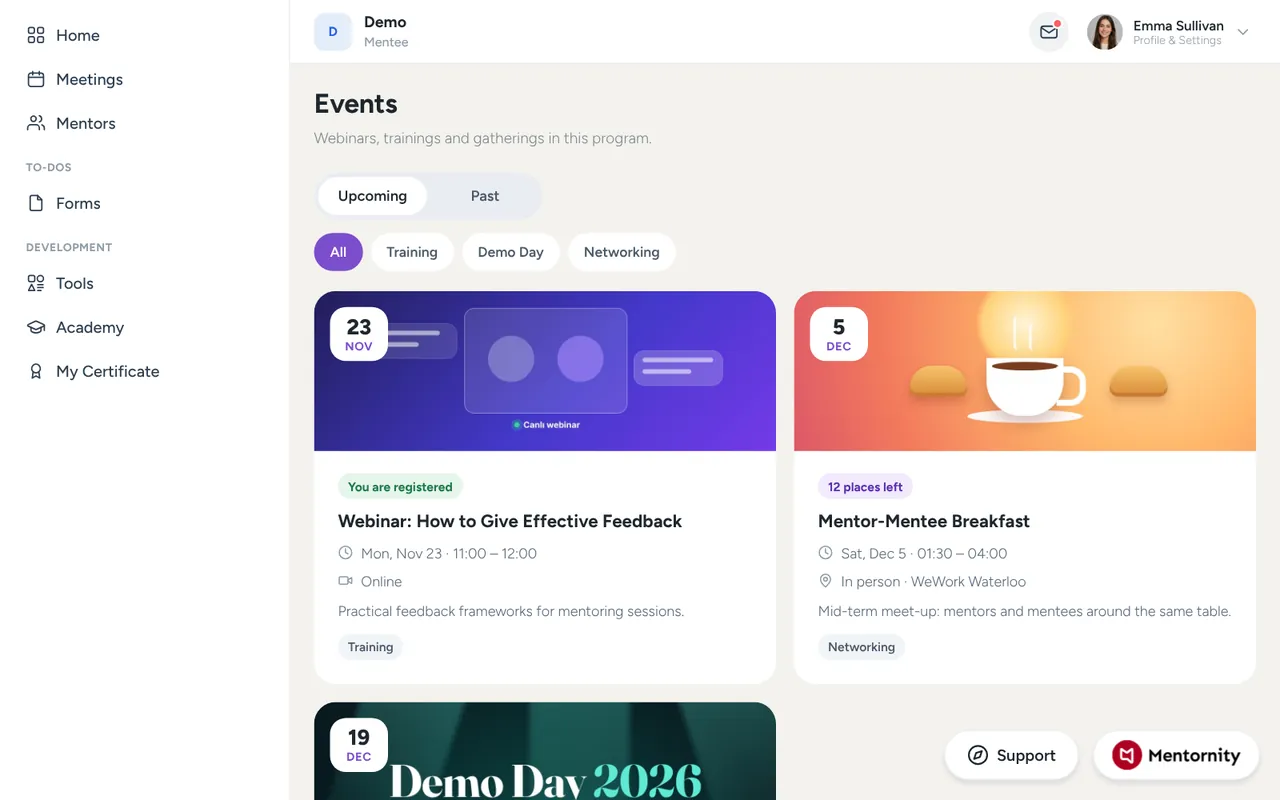
Program Content now has an Events tab. You give an event a title, a short summary, a cover image and details. You pick the date, the time and the time zone. An event can be online, in person or hybrid. When you publish your first event, an Events page appears in the members’ menu.
What’s in it
- You choose who sees itEveryone in the program, all mentors or all mentees can see an event. With Only selected people, only the people you add to its list see it. They tell you themselves whether they will attend.
- Registration, places and waitlistRegistration can be open, need approval, or be off. You can set a number of places and a registration deadline. When the places are taken, new registrations join a waitlist. In open events, a freed place goes to the next person on the waitlist.
- The calendar invitation comes by emailA person whose place is confirmed gets an email with a calendar invitation. If you change the time or place of a published event, registered people get the updated invitation. If you cancel it, they get a cancellation email. Members can also add the event to Google, Outlook or Apple Calendar from its page.
- Participants in one windowYou approve or decline requests. You register people directly and mark who attended. You download the list as Excel.
- Team registration in group programsWhen group registration is on, a mentee registers their whole group with one registration. The invitation goes to every member of the group.
- Comments and filesMembers write comments and replies on the event page. You keep comments open, under admin approval or closed. You attach up to 20 files from the program’s file library.
- The announcement email is readySend email on the event row opens the Mailing System. The event card and the event’s audience are already filled in.
Where
Admin panel → Program Content → Events → New event. For members: Events in the menu.
Certificate System
Give graduating founders a QR-verified certificate. It can go on LinkedIn.
Issue certificates to your participants automatically. You define the rules; the system produces elegant, verifiable certificates for everyone who qualifies.
What’s in it
- Rule-based eligibilityDefine who earns a certificate with rules; the system applies them automatically.
- QR verificationEvery certificate carries a QR code that opens a public verification page.
- Hologram & sealA role-badged hologram and seal give certificates a prestigious look.
- Add to LinkedInParticipants add their certificate to their LinkedIn profile in one click.
- Delivered by emailParticipants automatically receive an email when their certificate is ready.
- Logos & appearanceManage the logos and layout on the certificate from settings.
Where
Left menu → Certificates
Messaging as a startup team
A startup is a team, not a person: every co-founder sees the message to the mentor, and who wrote it stays visible.
In grouped programs messaging has been person-to-person: when one member of a startup wrote to their mentor, their teammates might not hear about it. Admins had no single place to write to a whole startup either. Now one side of a conversation can be the GROUP itself: every member of the group sees the message, any of them can answer in the same thread, and every message says who wrote it. Group membership is read fresh every time: somebody who joins the team today sees the history, and somebody who leaves stops seeing it immediately.
What’s in it
- Write to your mentor as the groupWriting to a mentor now offers a choice: on behalf of your startup, or as yourself. Sent as the group, the conversation belongs to the team; sent as yourself it stays private as always. They are two separate conversations and never mix.
- Mentors can write to the whole startupA mentor reaches the entire team with one message from the startup’s page. No writing the same thing three times; whoever is available answers in the same thread.
- Admins can write to a group as the program“Send a message” from the group page in the admin panel. It goes out as the program: the group sees the program’s name, not yours, and every admin of the program shares the thread, exactly like the program channel for individuals.
- Who wrote is always visibleEven on a message sent for the group, the author’s name and photo stay. Teammates, the mentor and the admins all see who wrote. The one exception is the program’s own half: there the group sees “the program”, not the particular admin behind it.
- Never confused in the inboxYou can have both a private and a group conversation with the same mentor; they sit on separate rows. A group thread carries its own glyph and an “on behalf of <group> · <program>” label, so it is obvious at a glance.
- Notifications reach the whole teamThe new-message email goes to every current member of the group plus the other side. A mentor’s reply reaches the whole team, not only whoever happened to write last.
- Membership is read liveWho can see a thread is never stored on it; it is worked out from the group’s current member list every time. A member added today sees the history, a member removed stops seeing it immediately. Nothing needs back-filling.
- Attachments belong to the teamFiles and images posted into a group thread can be downloaded by every member of the group, and by nobody outside the conversation.
- The report names the startup and counts it properlyThe Person–Message table now shows the startup’s name beside the person’s. The number in “7 startups, 12 message exchanges” is now the count of DISTINCT STARTUPS: talking to three people from the same startup no longer counts as three. A mentor’s group threads are included in the totals too.
What it is good for
Where
Members: Message on the mentor’s page · Mentors: Message on the startup’s page · Admins: Admin panel → group page → Send a message
Invite Someone Without an Account to a Call
Invite an investor or a teammate without an account to the call with a meeting code.
You do not need to open an account for a guest expert or a partner to bring them into a call. The meeting’s participants and the program admins create a meeting code. The guest joins with the code or the invitation link and only types their name.
What’s in it
- Code, link and invitationInvite a guest on the meeting page prepares the meeting code, an invitation link and an invitation text you can copy.
- Already in the invitationThe meeting email and the calendar invitation carry the join link and the meeting code by themselves.
- From inside the callDuring the call, the invite button in the top bar opens the same window.
- You stay in controlA code works for that one call only and opens 30 minutes before it starts. The guest’s name is marked Guest. New code or Turn off guest access stops new joins right away.
Where
Platform → meeting page → Invite a guest. In-Platform Video calls only.
Mentees Can Add Their Own Time Slots
Founders add their free hours and the mentor books a session in one of them.
Program Settings now has “Mentees can add time slots” next to “Mentors can add time slots”. It is off by default. When you turn it on in a one-to-one program, mentees add the hours they are free on their My availability page. Their matched mentor sees those hours in the Schedule a meeting window on the mentee’s profile and picks one.
What’s in it
- The mentee adds the hoursOn My availability, the mentee adds the hours they are free. Their matched mentor sees them.
- The mentor picks a timeOn the mentee’s profile, the mentor opens Schedule a meeting. The calendar shows the mentee’s hours, and the mentor books one.
- No video account neededThese meetings run on In-platform video, Jitsi Meet or a place or link the mentee writes. Nobody has to connect a video account.
- Hidden again when offTurn the setting off and mentors no longer see mentee hours.
- Mentor statistics do not changeMentor availability statistics do not count mentee hours.
- Guides follow the settingThe user guides inside the platform explain the steps according to this setting.
Where
Admin panel → Program Settings → Meeting Creation → Mentees can add time slots. One-to-one programs only, not group programs.
Program Calendar: Every Mentor’s Hours on One Screen
Every mentor’s office hours on one screen: who is free when and which slots are taken.
The Availability screen has been rewritten. Mentors are rows, days are columns, cells are published hours. The period’s summary sits above it: how many hours were opened, how many filled, how many mentors published. You look at it by day, week or month. You filter mentors by your program’s own fields. Press a cell to create a meeting, close the hour or open the meeting that is already there. The menu item now shows in every program.
What’s in it
- Day, week, monthThe weekly grid for detail, the monthly view for density. Every hour is shown in the program’s time zone, and the screen names which zone that is.
- The period’s summaryHours opened, bookings taken, fill rate, total time published and how many mentors published. Overlapping hours count once in the time total.
- Filter by your program’s own fieldsBeside the search box sit the fields you defined yourself: expertise, city, company. You filter with whichever ones your program has.
- An hour’s state at a glanceFree, taken, closed, clashing, or busy with another meeting in this program. Taken hours name whoever booked them.
- Act straight from a cellPress an hour: create a meeting, close it, reopen it, or open the meeting already in it. A past hour only accepts a meeting that already happened. In that case no notifications go out and no video link is created.
- Check the mentors’ own calendars“Check calendars” reads the external calendars mentors have connected and marks the clashing hours. A clashing hour is already closed to booking. There is nothing to delete, and it reopens by itself once the mentor’s calendar changes.
- Edit a mentor’s hoursAn admin can edit a mentor’s published availability. In the same form the mentor uses, under the same conflict rules.
- Past periods stay honestLook at a closed period and the booking figures are exact. Availability figures are recomputed from today’s records, and availability edited later is restored as it stood back then. The screen tells you so.
What it is good for
Where
Admin panel → Availability
AI Rule: A Third Rule Type That Reads Free Text
The algorithm reads the need a startup wrote and the experience a mentor wrote and scores the fit, so the right expert reaches the right startup.
The matching algorithm had two rule types. Standard and custom rules compare values: same city, different department, this option against that one. People do not describe themselves with dropdowns. The paragraph a mentee writes under “what do you want help with?” sat somewhere no rule could read. The third rule type reads it. You pick one mentor field and one mentee field, and the rule reads both texts and scores how well they fit. That score joins the same matching percentage as every other rule.
What’s in it
- Two fields, one comparisonYou pick a mentor field and a mentee field. Shared ground: both sides are strong in the same area. Complementary: what the mentor is strong in is what the mentee needs.
- The theme sets the axesEach theme has a handful of axes. For corporate career they are leadership, craft depth, career moves, working across an organisation, and balance. Left on automatic, the theme is chosen from your program’s audience.
- Two sides, two different questionsOn each axis the mentor is asked whether they show real experience they could pass on. The mentee is asked whether they have a goal or a need there. “I led a team” and “I want to lead a team” cannot be told apart by one question.
- A language model gives the judgementThe judgement comes from a language model that writes no text. It returns one score per question. The questions are in English, and the text is judged in whatever language it was written in.
- Everyone is read onceReadings are per person, not per match. A program with 200 mentors and 120 mentees takes 320 readings, not 24,000 possible matches. A match’s score is calculated from those two readings.
- Only the field you picked is sentNames, e-mail addresses and contact details are not sent. Processing happens only when you run a calculation. Readings are kept, so the same text is not read twice.
- The score joins the percentage, the decision stays yoursThe rule takes a weight and can be made mandatory. A rule that could not be scored is not hidden: the match details say why. Nothing is matched without your approval.
What it is good for
Where
Admin panel → Matching → Matching Algorithm. Access is opened per program, and you can request it from the card.
Mailing System: Targeted Email From Your Program Data
Every list in the panel is an e-mail audience: startups that have not met, mentors without open hours, teams that skipped the weekly pulse.
A regular mass mailing tool only gives you a list of addresses. Mentornity knows your program: who is matched, who met, who logged in, what people wrote in their profiles. Wherever the Guide, Program Health or the Users list shows you a number, you can email the people behind it from right there. You do not collect the recipients. The list is worked out again from the program’s current data when the email goes out.
What’s in it
- The screen gives you the audienceGuide & Dashboard, Program Health, Users, Groups, Availability, to-do lists and agreements all have an email button.
- By profile and by activityFilter the Users list by profile fields, invitation status or notes and write to the result. In Program Health, pick the people who have not logged in for the last 7, 30 or 90 days.
- With their match’s nameWhen you send from a match list, the personal fields include the names of the people each person is matched with. Everyone reads the name of their own match.
- See it before you sendOpen the recipient list and remove anyone you want to leave out. You confirm the number of people before sending, and you can attach files.
- Follow the resultEach send shows how many emails were sent, delivered and opened. People who unsubscribed and bounced addresses are skipped.
Who you can write to
Where
Admin panel → Mailing and Reminders → Mailing System → New email. On lists: the Send email button.
Coordinators Assigned by Rules
Assign program managers or sector leads to startups automatically, by rule.
You no longer have to assign coordinators one by one. You write rules that compare a coordinator’s details with the mentor’s or the mentee’s. Preview, then assign in one click.
What’s in it
- Extra fields for coordinatorsOn the Coordinators tab, define fields such as city or unit and fill in each coordinator’s answer.
- Same or differentA rule compares a coordinator field with a mentor or mentee field. The condition is when the same, or when different.
- AND or ORCombine conditions within a group and across groups with AND or OR.
- Preview firstSave and preview lists who will be assigned. An existing coordinator is never removed.
- New matches tooIf you want, the rules apply by themselves to every new match you approve or import from Excel.
Where
Admin panel → Matching → Coordination Center → Automatic assignment. Fields: Users → Coordinators → Additional fields.
Phone, Date and File Questions in Forms
Add phone, date and file questions to your application form and collect the pitch deck with the application.
When you build a form, you can now add phone, date and file questions. Answers arrive in the right format. Uploaded files are collected on the Files page.
What’s in it
- PhonePeople pick their country by its flag and type the number in that country’s format. You can limit the countries or define your own format.
- DatePicked from a calendar. You can allow past dates only, future dates only, or a set range.
- FileUploaded by drag and drop. You set the file types, how many files, and the size limit.
- Files pageEvery uploaded file sits in one list, found by name or question. Only authorised people can open them.
Where
Admin panel → form builder → question type. For files: left menu → Files.
Corrections in applications and names
A misspelled name or e-mail in an application is no longer permanent; fix it before you accept.
On the Applications page you can correct an applicant’s first name, last name and e-mail before accepting. For someone without an account yet, the pencil beside the name on their page changes the details. You do not change an active member’s name, you propose it: the member accepts or declines on a card.
What’s in it
- Fix before acceptingEdit details corrects an applicant’s first name, last name and e-mail while the applicant has no account.
- Invitations follow the new addressWhen the e-mail is corrected, pending invitations move to the new address on their own. An address that belongs to another account is refused.
- A proposal to an active memberThe member accepts or declines the proposed name. One proposal can be open per person, and it lapses after 14 days.
- No double applicationsA new application from an e-mail that is already a member or has a pending application is not recorded. Someone with the same first and last name but another e-mail confirms they are a different person.
Where
Admin panel → Users → Applications → Edit details. A person’s page → the pencil beside the name.
Renewed Reporting
View cohort reports without downloading them, with charts and PDF, Excel or CSV export.
The reporting system has been rewritten. Reports now render instantly on the page, and download as PDF, Excel or CSV whenever you need.
What’s in it
- View without downloadingReport results open on the page with tables and charts.
- New report typesMeeting success rate, users without meetings, match-meeting report and more.
- Export in 3 formatsPDF, Excel (XLSX) and CSV outputs, with a print-ready cover page.
- Generated in backgroundLarge reports are prepared in the background and listed the moment they finish.
- Quick date rangesPull reports in one click with ranges like last 7 days or last month.
- In your languageReport titles and export files are produced in your panel language.
Where
Left menu → Reports
Program Settings, Redesigned
Settings pages are easier to read, and group programs get a new privacy setting.
The Program Info, Meeting Creation, Matching Settings, Privacy and General tabs moved to the new design. Onboarding, certificate and account settings follow the same layout. Your saved settings did not change.
What’s in it
- Each setting on its own cardSettings are grouped on cards with icons. Each one has a short explanation under it.
- Save stays in viewOnce you change something, the save bar stays at the bottom of the screen.
- Program Info previewCover and logo sit side by side. You can preview how the program looks to users.
- Restrict individual messagesIn group programs, mentees write only on behalf of their group and mentors write only to groups. Admins and coordinators are not affected.
- An overview of your contentThe new Overview tab in Program Content sums up posts, links, forms and to-do lists.
Where
Admin panel → Program Settings. New setting: Privacy → Messaging → Restrict individual messages.
Live messaging
Messages arrive without a page refresh, with typing and seen marks and file sharing.
Messages now live in one window: the conversation list on the left, the open conversation on the right. A new message appears at once, and you see when the other side is typing. The program’s shared inbox in the admin panel uses the same window. When members write to the program they still see only the program, never which admin replied.
What’s in it
- InstantNew messages arrive without a page refresh. You see when the other side is typing, has seen your message and is online.
- AttachmentsPictures up to 10 MB, documents up to 25 MB, at most five files per message. Only the people in the conversation can open them.
- List and conversation side by sideThe conversation list with search and an unread filter, the open conversation beside it. Older messages load as you scroll. On a phone, the list comes first, then the conversation.
- In the admin panel tooThe program’s shared inbox opens in the same window. The program team sees the member typing and reading; the member sees only the program.
Where
Platform → top menu → envelope icon. Admin panel → top bar → message icon.
Topic posts
Open a topic and let founders share their experience with pictures. Peer support inside the cohort grows.
A new post now comes in two formats: Post and Topic. A post is written by the program team and read by members. A topic is opened by you and filled by members. Each topic has its own page: members’ posts run on the left, the topic’s title and description sit on the right. On the members’ home page the topic shows as its own card, with the people who have posted to it.
What’s in it
- Posts with picturesUp to four pictures per post. Members reply to posts and delete their own.
- LikesMembers like posts. They see how many people liked a post, never who. The feed sorts by newest or most liked.
- Open or approvedPosts go live at once or wait for an admin’s approval first. Admins can delete a post when needed.
- Its own card on the home pageThe topic card shows the number of posts and the faces of the people who posted. The Share a post button opens the share box directly.
Topics you could open
Where
Admin panel → Program Content → Posts → New post → Topic. For members: the program home page.
My Programs: Every Program on One Dashboard
A founder in several programs sees upcoming sessions and open tasks on one page.
The My Programs page became a dashboard. Upcoming meetings sit at the top, with counts of pending work below. Clicking a row opens the right program in the right role.
What’s in it
- Upcoming meetingsMeetings from every program appear in one strip, in date order.
- Numbers firstMatch requests, to-dos, meeting forms, feedback forms and messages each get a tile with a count. Empty tiles are hidden.
- Program filterEvery list shows each row’s program and role. You can narrow a list to one program.
- The right roleEach program has one Enter menu. People choose there which role they enter with.
Where
Platform → My programs
Customer panel
One panel for organisations running several cohorts or programs: every program, every startup and the matches that need attention.
The customer panel is the admin panel of your organization, not of one program. The overview shows the number of programs, participants and active matches, each program’s health and the matches that need attention. From here you enter a program, send one announcement to several programs or open a new one.
What’s in it
- Programmes in one tableSort by participants, active matches, meetings this month or matches that need attention. Enter any program’s panel from its row, or preview it as a mentor or mentee.
- Every participant in one listThe people of all your programs together. Filter by shared fields, e-mail the people you select or download them as Excel. A person’s card shows their role and activity in each program.
- Matches that need attentionWaiting matches open in one window, program by program. Write to both sides, the mentors only or the mentees only in one e-mail, or work on them with Mentornity AI.
- Shared announcementsOne e-mail to the people of several programs. Someone in more than one program gets it once.
- Authorized people and new programsSee every program admin of the organization with their roles, and give one person a role in several programs at once. Open a new program from an existing one, a template or Mentornity AI.
Where
My Programs → Go to the admin panel. With several customer accounts: Your customer accounts → Go to panel.
White label in the customer panel
Run the program under your own brand and domain, set up from the customer panel.
White label now has its own section in the customer panel. You set your brand name, logos, colours and domain there. You set it up first and use it free for 21 days; if you like it, you pay from the Plans page.
What’s in it
- One account per domainOne white label subscription is one account, with its own domain. For another domain you add another account.
- Live DNS and SSL checkThe panel shows the DNS record to add, reads it from the internet and tells you whether it is right. The SSL certificate’s status sits in the same place.
- Send it to your IT teamIf someone else runs your DNS, email them the record and the steps. You see the email first and can change its subject and text.
- Colour picker and previewType a colour code or pick one from the palette with Pick a colour. The preview next to it shows every change at once.
Where
Customer panel → White Label.
Admin roles
Give your program team and partners the role that fits; you choose who sees what.
A program’s admins no longer need the same rights. On Users → Admins every admin now has a role. The ready roles cover everyday needs, and when you need something else you pick the switches one by one. Admins without a role stay Full admins, so nothing that works today changes.
What’s in it
- Full admin and Program managerA Full admin does everything. A Program manager does everything too, except adding admins and touching integration keys.
- AssistantRuns the day-to-day work: matches, meetings, announcements and messages. Adds or removes nobody, changes no settings, exports nothing and sees no e-mail addresses or phone numbers.
- ObserverFollows the program: dashboard, reports and names. Changes nothing. Sees no e-mail addresses, phone numbers, form answers or notes.
- Custom rolePick any set of Can do and Can see switches. Anything switched off is view-only, and the dashboard is open to every admin.
- Mentornity AI follows the roleAnyone can talk to the assistant. A proposal card is approved only by an admin who could press the same button in the panel.
Where
Admin panel → Users → Admins → Role. Across several programs at once: Customer panel → Authorized people → Give a role in bulk.
Detailed Logs: Who Changed What, and When
Every admin action is logged: who changed what, and when.
The Activities page already showed what members did. What admins did was not there. “Who changed this setting?” “Who cancelled this match?” “Who downloaded that report?” None of those questions had an answer anywhere. The same page now has a second tab: Detailed Logs. Every row says who did what and when. If a record changed, it shows what each field held before and after. Matching activity was reconstructed backwards to 7 September 2025 from the existing records. Every other action started being recorded on 7 September 2026 and is kept for 24 months.
What’s in it
- Field by field, before and afterYou do not guess at what moved. Expand the row and every changed field sits there with its “Before” and “After” value. Very long text is shortened, and the row says so.
- The “Who” pickerAdmins, mentors, mentees or everyone. Narrow it to admin actions when that is what you are after. Members’ own actions are in the same list.
- Filter by subjectMembers, matching, invitations, meetings, content, settings, reports and access. Pick “settings” and only changes to the program configuration remain.
- Search a person, a record or an actionThe search box works across all three. Type somebody’s name, or the name of the record that changed, or the action itself.
- Last 7, 30, 90 days, or all of itThe range picker narrows the list. The count sits at the top. More rows load as you scroll.
- Matching history was back-filledFor the period before recording began, matching activity was derived from the matching records themselves. Those rows carry a “carried over from the matching records” note, so they are never confused with what the panel reported at the time.
- In your program’s own wordsA program on the pool model reads “following”, not “matching”. Action names follow the role and relationship words you chose.
What it is good for
Where
Admin panel → Activities → Detailed Logs
Program Agreements
Publish confidentiality and participation agreements; founders and mentors accept them before they join.
Define multiple agreements specific to your program. Published agreements are automatically added to the acceptance flow when users enter the platform.
What’s in it
- Multiple agreementsPublish any number of agreements in 6 languages, as rich text.
- Acceptance gateUsers go through invite → agreement → welcome in order; there is no way around it.
- Re-acceptanceWhen you update an agreement, request re-acceptance with one click.
- Acceptance trackingTrack acceptance rates, remind those who have not accepted, and export the list to Excel.
Where
Onboarding → Agreements
Admin Panel in Spanish and French
The admin panel now also runs in Spanish and French, for international cohorts.
Spanish and French speaking teams can run the panel in their own language. French speaking participants get the platform and its emails in French.
What’s in it
- Everyone picks their own languageLanguage is a personal setting. People in the same program can each use a different one.
- Emails followEmails from the platform go out in the language each person chose.
Where
Top-right menu → Settings → General Settings → Language
Images with Mentornity AI
Mentornity AI draws the picture for a demo day announcement, an event or the cohort cover; add it in one click.
Image fields and the text editor have a new AI image button. Describe what you want to see or pick a suggestion. Mentornity AI draws a picture that fits the content, and a few options if you ask.
What’s in it
- Wherever there is contentAnnouncements, events, to-dos, the onboarding and application pages, emails, the program cover and logo, and team pictures.
- One click to use itUse this image under the picture puts it in the field. Download saves it to your computer.
- From the chat tooWhen Mentornity AI prepares a post or an event for you, ask for a picture as well. It comes with the card, and you approve it.
Pictures you could ask for
Where
Admin panel → AI image next to an image field or the editor.