Mentornity Mentor Guide: How to Use the Member App
Mentornity is the software your mentoring, coaching, or advisory program runs on: one account, one app, where you manage your profile, see who you are working with, book and run meetings, and fill in whatever forms your program asks for. This guide walks a mentor through the whole app, from joining a program to running your first meeting, no matter which of Mentornity’s program setups your organization uses. Where a program renames the mentor role (coach, consultant, advisor, and similar labels), the screens and steps described here stay the same; only the label on screen changes.
How do you join a program as a mentor?
You join through an invitation or, in some programs, by applying.
Most programs send an invitation to your email address. Opening it takes you to a sign-in page where you enter your email and receive a one-time sign-in link; if the link does not arrive quickly, the page offers a one-time code instead. If you are already signed in to Mentornity under the invited email, you will see an Accept & continue button rather than being signed in automatically, so check that the invitation is actually meant for you before accepting.
Some programs instead run a public application page where prospective mentors fill in their name, email, and a short set of questions the program has defined. After the program team approves an application, you receive the same kind of invitation.
Before you can enter the program, you may be asked to review and accept one or more program agreements, each with its own checkbox and a link to the full text. Declining with Not now keeps you out of that specific program without blocking any other program you belong to; if the wording later changes, you will be asked to accept it again.
The first time you enter, a short welcome wizard walks you through your profile, matching information if your program shows it, your time zone and date format, calendar or video integrations, and, in programs that allow it, your first availability slots.
How do you complete your mentor profile?
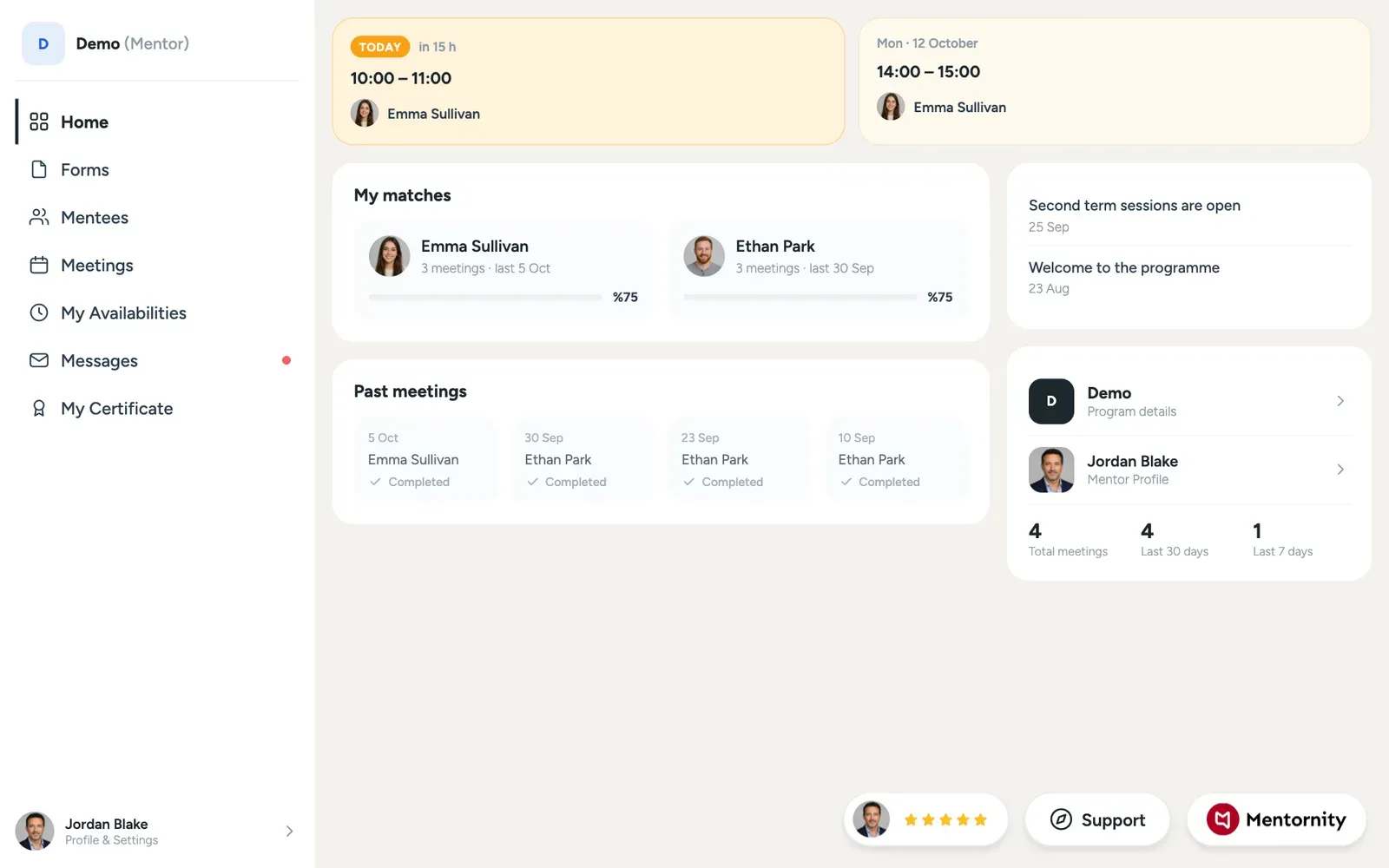 Your profile is what the program team, and in some setups the mentees themselves, see when deciding to match with you. Fill in the fields your program asks for completely: they often drive matching decisions, and an incomplete profile is a common reason a program team cannot pair you with anyone.
To edit it, open your profile from the account menu at any time, not only during the welcome wizard. If your program lets mentors set their own matching limit, you adjust how many mentees you can take on from your profile settings.
How do you get mentees to work with?
This varies the most between programs, since Mentornity supports several matching models side by side. Your program uses one of the following, and your in-app guide will say which:
- Matched by the program team. The team pairs you with mentees directly; you don’t request or approve anything. Keep your profile complete and up to date so the team has what it needs.
- Mentee requests, program team approves. Mentees send a match request from the mentor list, and the match starts once the program team approves it.
- Mentee requests you approve. Mentees browse a list of mentors and send you a request. You see the requests on the Mentees page; the match starts once you accept.
- Instant match on mentee selection. A mentee selects you and the match starts immediately, with no approval step on your side.
- Pool, no formal matching. There is no matching step at all. Mentees book time directly from your published availability, and the relationship exists one meeting at a time rather than as a formal ongoing pair.
In most programs the program team decides how many mentees you can be matched with at the same time; to request a change, use the support form. Some programs let you set this limit yourself.
To end a match you are already in, open the matched person’s profile. If your program allows mentors to end matches, you will see the option there; if you don’t see it, send a support request and ask the program team to make the change.
How do you set your availability?
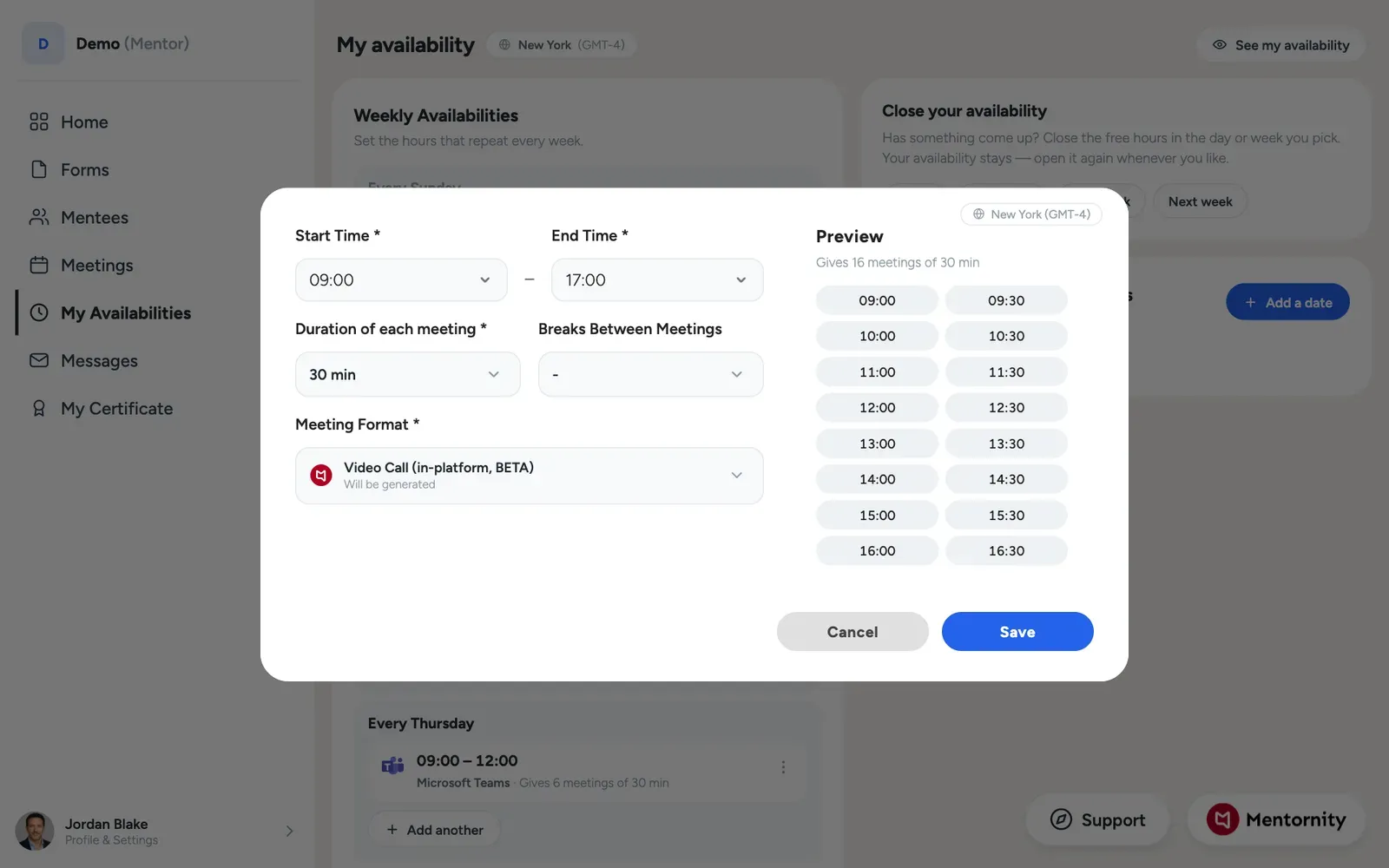 If your program allows mentors to create availability, you will find My Availabilities in the left menu. Add free slots there and matched mentees (or, in a pool program, any eligible mentee) can book them directly. If your program offers weekly availability, you can add slots that repeat every week, shown up to about two months ahead. You can also add a slot for a single date. When a mentee books a slot, neither side approves it separately: the meeting is set for that day and time.
If your program does not show an availability area, mentors there don’t create their own slots; meetings are instead created directly, as covered next.
How do you choose a meeting location, and connect video or calendar accounts?
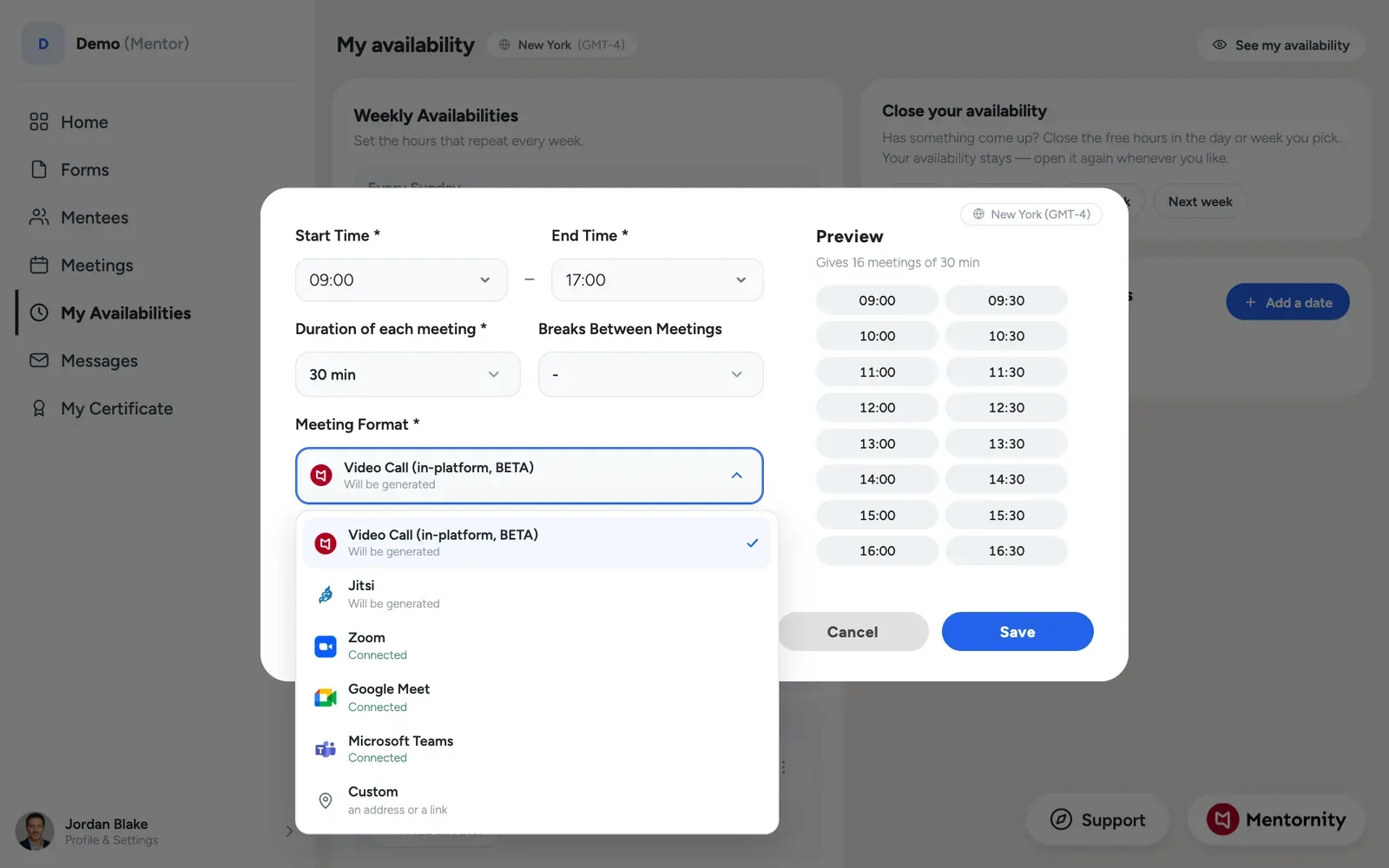 When you create a meeting or an availability slot, you choose where it happens from six options: Mentornity’s own in-platform video, Jitsi Meet (no account required), Zoom, Google Meet, Microsoft Teams, or a custom location such as a physical address or a link you paste in yourself.
Zoom, Google Meet, and Microsoft Teams each need you to connect that account first. Open the account menu, choose Calendar & video integrations, and connect the accounts you use:
- Google for Google Calendar sync and Google Meet links.
- Zoom for Zoom links.
- Microsoft Teams (school or work account) for Teams links.
- Outlook.com / Office 365 for calendar sync only; this one does not generate a video link.
Connecting an account means signing in to that service once; you don’t paste links by hand. Once connected, meetings and availability slots using that provider get their link created automatically, and a connected calendar shows your Mentornity meetings.
If a connected account disconnects, a meeting created with it is still saved, just without a link, rather than being rejected. When you reconnect, upcoming meetings you host that were missing a link get one. If a meeting is close and still has no link, message the other side and agree on where to meet.
How do you plan and run a meeting?
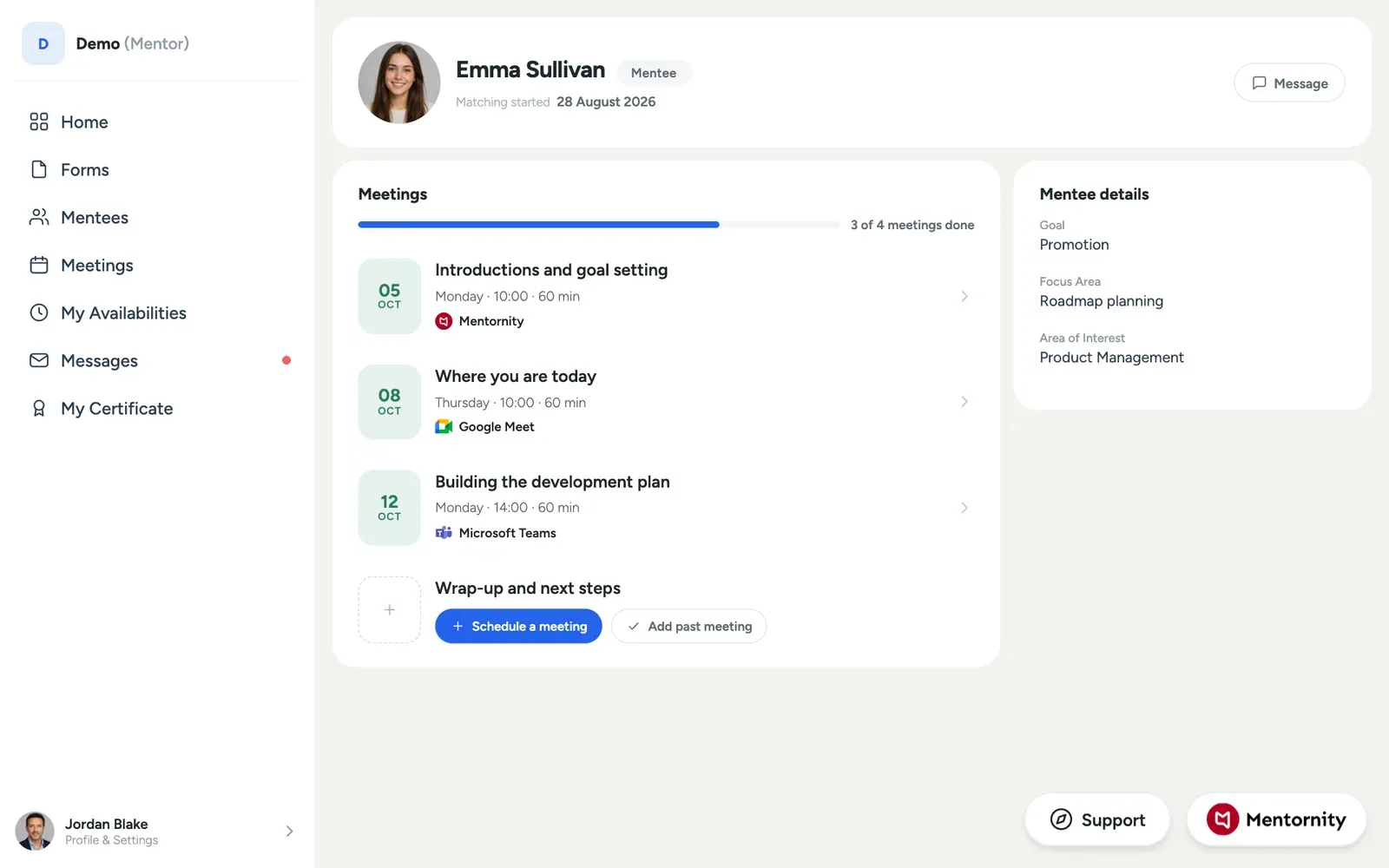 How a meeting gets created depends on your program’s model:
- Pool programs: you publish availability and mentees book directly; there is no separate “create meeting” step for you.
- Structured programs: open the mentee’s profile from your matches, click one of the predefined session titles your program has set up, and create the meeting from there.
- Freestyle programs: open the mentee’s profile from your matches, use the create meeting button, and pick a time.
- Group or startup programs: a meeting is created on behalf of the whole group at once; every member is invited and shares the same meeting notes.
You can log a past meeting for record-keeping, reschedule an upcoming one with Update, or cancel it with Cancel; the other side is notified either way. If you don’t see those buttons on a meeting, your program’s rules don’t allow that action for you there.
In structured programs, the session list shows the structure the program offers; you may not need to hold every session on it. The program team tells you how many meetings are expected of you.
How to run your first mentoring meeting and questions mentors ask go deeper on the conversation itself once the meeting is booked.
What are session plans and forms?
In structured programs, each meeting may come with a predefined session title set by the program, visible on the mentee’s profile and on the meeting itself, so both sides know what that session is meant to cover.
Separately, your program may attach a form to a meeting, for example a pre- or post-meeting form. Open it from the meeting page; a form you’ve already answered reopens prefilled so you can review or update it rather than starting over.
How do you message your mentees?
Open the mentee’s profile and use Send message. Messages also trigger an email notification. To message one specific mentee inside a group or startup program, open the group’s profile first, then that member’s profile from within it.
How much messaging your role allows depends on your program: some let you message anyone in the program, some only matched people, and some disable it between certain roles entirely. If a mentee doesn’t reply within a reasonable time, use the support form rather than escalating outside the platform.
What are tasks, posts, and certificates?
Tasks. If your program uses to-do lists, a Tasks card on your home page shows your open items, and the full list opens from To-Do Lists in the menu. Tasks are a checklist for your own reference, not a gate: nothing in the app blocks you for leaving one unfinished.
Posts. Program announcements appear in the Announcements area of your home page; open one to read the full post, which can include embedded media depending on what the team published.
Certificates. If your program issues certificates, the My Certificate page shows your progress against what it requires, for example sessions or forms completed, with a sample of the design. Completing every requirement changes your eligibility status; it does not automatically issue the certificate. An administrator has to publish it before your certificate becomes available to you.
How do you get help inside the app?
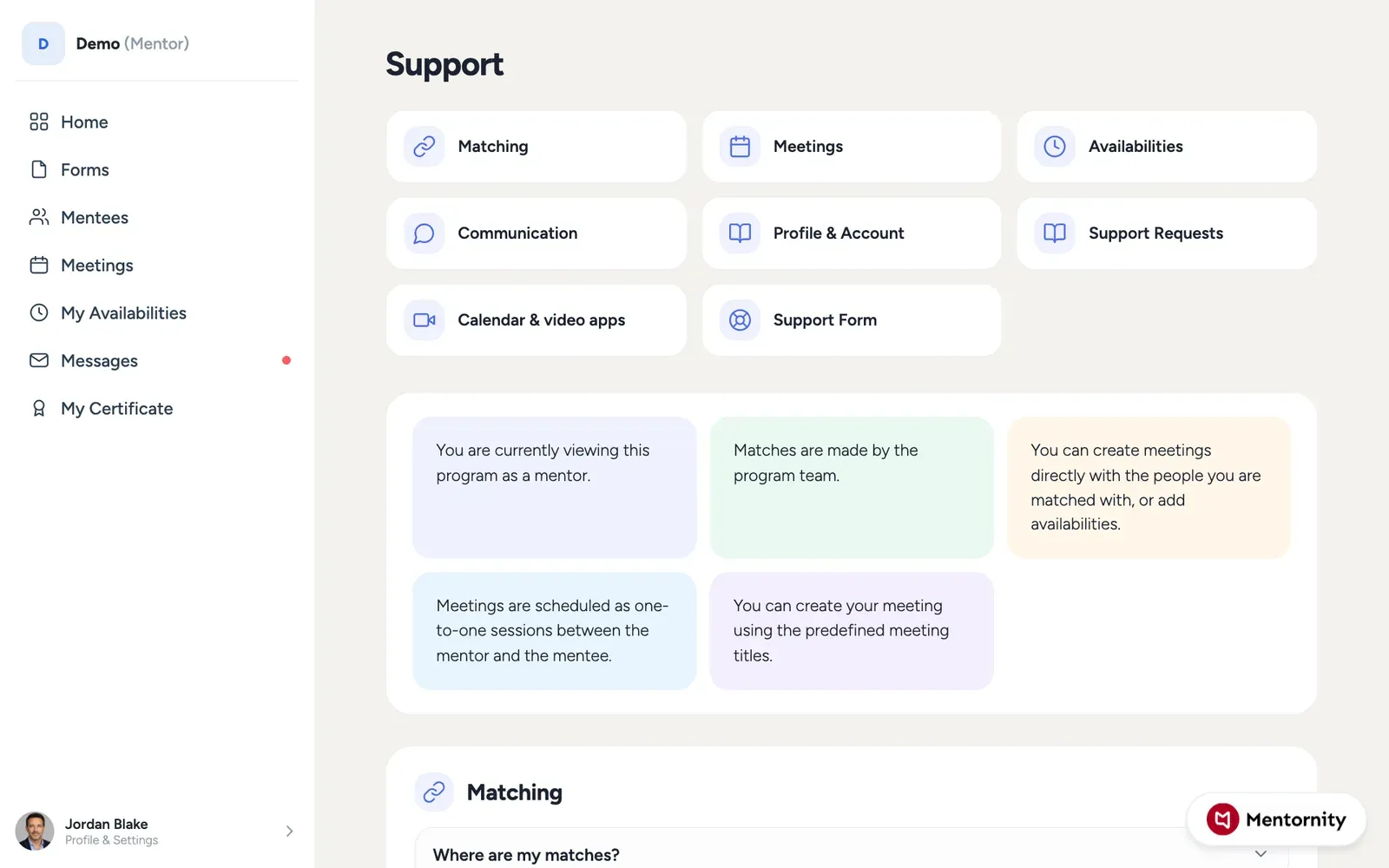 The member app has a built-in guidebook, which you open with the Support button (a floating button on desktop, a menu item on mobile). It is organized into sections such as matching, meetings, availability, communication, program agreements, calendar and video apps, and support requests, and it adjusts to your program’s actual setup, so the sections you see reflect what your program has turned on.
If the guidebook doesn’t answer your question, open New Request in the support area, pick a topic such as matching, a technical problem, or feedback, write your message, and attach up to five files if needed. Track open and past requests under My Requests. Replies from your program’s team show under the program’s name; replies from Mentornity’s technical staff appear as Technical Support Team.
If your program uses single sign-on, you may see a sign-in link for that instead of the usual email sign-in.
How do you set your notifications, language, and time zone?
Open the account menu. Date, time & language covers your time zone, display language, time format, date format, and which day your week starts on; a mismatch between this setting and your device’s actual time zone is a common cause of a meeting appearing at the wrong time, so check it early.
Notification settings turns email and push notifications on or off separately for meeting creation, updates, and cancellations, meeting notes, new availability, new messages, and reminders, plus an overall unsubscribe option and a per-program email block. Changes save automatically as you toggle them.
What’s different if you mentor a group or startup team?
Group and startup programs work the same way as individual mentoring, with a few differences from being matched with a whole team rather than one person.
- Meetings you create are for the whole group: every member is invited at once, and notes are shared with the entire group rather than one-on-one.
- To message one member privately, open the group’s profile first, then that member’s profile from inside it; you can’t message an individual group member directly from a list.
- “Startup” is simply the label some programs use instead of “group”; the screens, matching options, and meeting behavior are identical either way.
Everything else above, your profile, availability, meeting locations, forms, messaging, tasks, posts, certificates, and support, works the same whether you mentor one person or a team.
For a full comparison of how matching, meetings, and roles differ across Mentornity’s program setups, see mentoring program models. For the administrator’s side of running a program, see the Mentornity admin guide. For a deeper look at video and calendar options, see video meetings in Mentornity.