Video Meetings in Mentornity: Zoom, Meet, Teams, Jitsi
Video meetings in Mentornity are the calls mentors and mentees hold inside a program: a meeting location you pick when you create availability or book a session, backed by either Mentornity’s own built-in video or a third-party provider you connect once. This guide covers every location option, how to connect an account, how calendar sync works, what happens when an account is missing or broken, and how to fix it.
Zoom, Google Meet, Microsoft Teams, Outlook, and Jitsi Meet are products of their respective companies. Mentornity connects to them as a user of their public account-linking features; none of them has a partnership with or endorses Mentornity, and Mentornity isn’t a Zoom, Google, Microsoft, or Jitsi product.
What meeting locations does Mentornity support?
When you create a meeting or publish availability, Mentornity offers six location types:
| Location | Needs an account? | Who can use it? | Link created automatically? |
|---|---|---|---|
| Video Call (in-platform, BETA) | No | Anyone, when the option is offered | Yes |
| Jitsi Meet (Video Call) | No | Anyone | Yes, a new link every time |
| Zoom | Yes, a connected Zoom account | Whoever’s account is used for the meeting must have it connected (see below) | Yes, if the account is connected; otherwise no link is added |
| Google Meet | Yes, a connected Google account | Same as above | Yes, if connected; otherwise no link is added |
| Microsoft Teams | Yes, a connected school or work Microsoft account | Same as above | Yes, if connected; otherwise no link is added |
| Custom (“Somewhere else”) | No | Anyone | No, you type the address or link yourself |
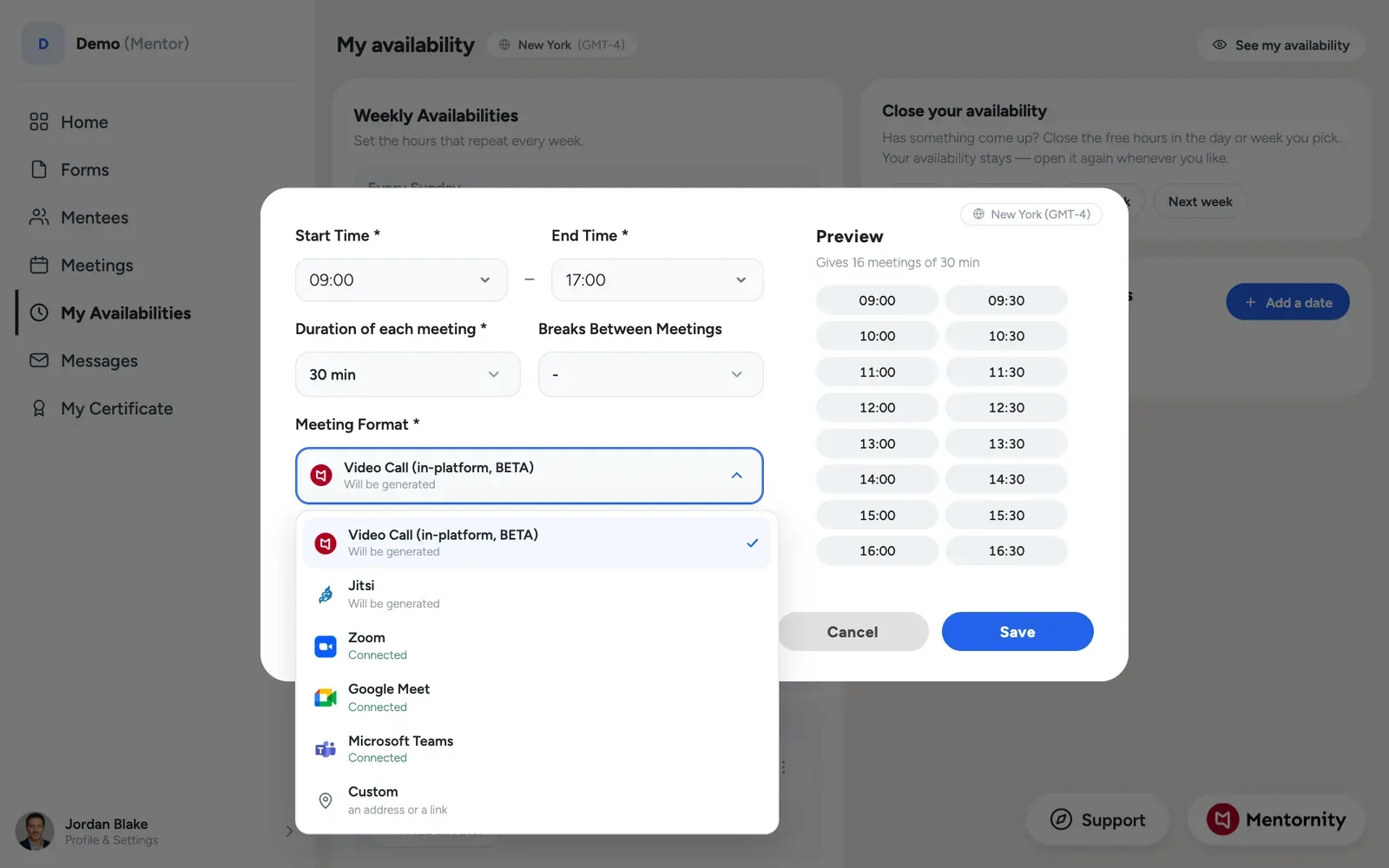 Labels differ slightly between screens: when you plan a meeting, in-platform video is listed as Mentornity (or as in-platform video in white-label programs) and the custom option as Somewhere else; the availability form uses Video Call (in-platform, BETA) and Custom. In-platform video and Jitsi Meet never need an account from either side and always produce a link. The three provider-based options, Zoom, Google Meet, and Microsoft Teams, need the account to be connected first. Usually that is the account of the person creating the meeting; for a slot booked from a mentor’s availability, or a meeting an admin creates, the mentor’s connected account is used. “Somewhere else” is a plain text field for any address, room name, or link you already have, such as an office location or a video tool Mentornity doesn’t integrate with directly.
How do you connect Google, Zoom, or Microsoft accounts?
Open the account menu and choose Calendar & video integrations. You’ll see up to four connections, each with its own Connect button:
- Google Calendar & Google Meet: connect your Google account to sync your meetings with Google Calendar and create Google Meet links.
- Zoom: connect your Zoom account to create Zoom links for your meetings automatically.
- Outlook.com, Office 365 Calendar: connect your Microsoft account to sync your meetings with your Outlook calendar. This one is calendar sync only; it does not add a video location option.
- Microsoft Teams: connect your school or work account to create Microsoft Teams links for your meetings automatically.
Clicking Connect takes you to the provider’s own sign-in page; after you approve access there, you’re returned to Mentornity already connected. There’s no manual step of pasting a link or token yourself. If a connection breaks later, for example because the provider access expired, the same screen shows a Reconnect button instead of Connect. Clicking Disconnect removes that connection.
Note the difference between the two Microsoft options: a personal Outlook.com account only gives you calendar sync, while a school or work (Microsoft 365 business) account is what creates Microsoft Teams meeting links. If you only have a personal Microsoft account, Teams stays unavailable as a meeting location for you (it shows Connect your account), even though your calendar will still sync.
How does calendar sync work?
Calendar sync isn’t a separate setting; it’s bundled into the same connections above. Connecting your Google account syncs meetings to Google Calendar. Connecting your Outlook.com, Office 365 Calendar account (personal Microsoft) syncs them to your Outlook calendar. For Google, one connection covers both calendar sync and Google Meet links; there is no separate calendar-only switch.
Once connected, Mentornity writes your meetings to that calendar automatically, and your busy hours there are respected so no availability is shown during them. That way you don’t get double-booked by something scheduled outside the platform.
Apple Calendar / iCal sync isn’t currently supported.
What happens if a video account isn’t connected, or disconnects?
This is the part that surprises people: a missing or broken video account does not stop a meeting from being created. If you pick Zoom, Google Meet, or Microsoft Teams as the location but the account behind it isn’t connected (or the connection has broken), Mentornity still saves the meeting; it just saves it without a link in the location field. Nothing is rejected and nobody has to redo the booking.
When this happens, the meeting confirmation email says the link could not be created, and the mentor’s copy includes a link to reconnect the account. An admin who created the meeting on someone’s behalf is not a participant and does not get that email, so checking Calendar & video integrations ahead of time is more reliable than waiting for someone to mention a missing link.
Reconnecting the account fixes this going forward: your upcoming meetings that were missing a link get one. Meetings already in the past do not get a link added afterward.
Video Call (in-platform, BETA) and Jitsi Meet (Video Call) don’t have this failure mode, since neither needs an account to generate a link in the first place.
How do you choose a location for availability?
When a mentor publishes availability or an admin sets it up on their behalf, the same six location options apply, now attached to a whole block of bookable time rather than a single meeting. Whatever you connected under Calendar & video integrations becomes selectable here too, so it’s worth connecting the accounts you plan to use before you publish availability, rather than after a mentee has already booked a slot.
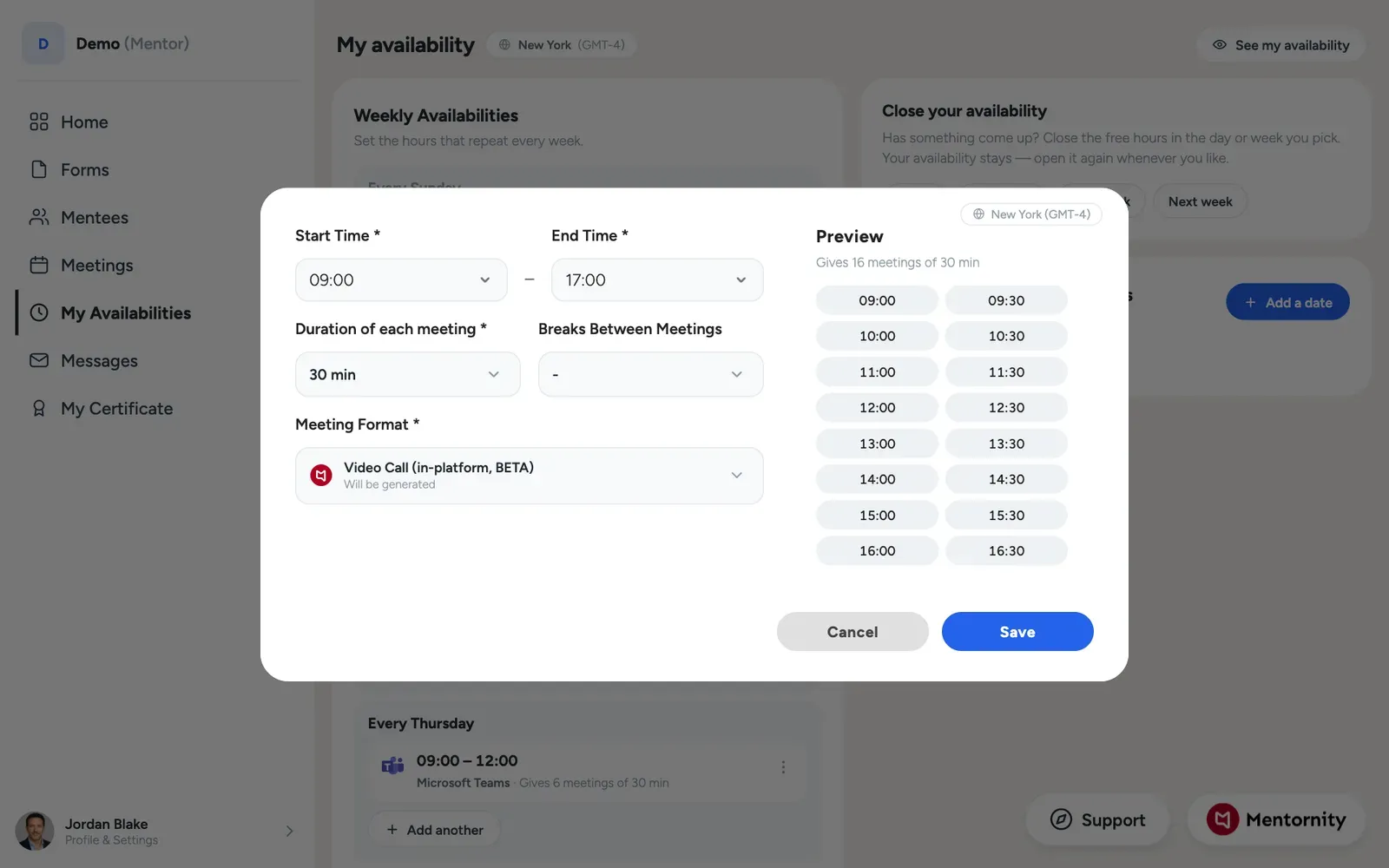 If your organization runs a white-labeled Mentornity program, the in-platform video option is called in-platform video rather than Mentornity when you plan a meeting; the underlying feature is the same either way.
How do you join a meeting?
From your homepage or the meeting’s own page, click the meeting; Mentornity shows the link or address for whichever location was set when it was created. For Zoom, Google Meet, and Microsoft Teams, that opens the provider’s own app or web client. For Video Call (in-platform, BETA) and Jitsi Meet, it opens directly in your browser; Jitsi may prompt you to sign in with a Google or Jitsi account first, since that’s a Jitsi requirement for its own meeting rooms, not something Mentornity controls. For a custom location, you’ll see whatever address or link the meeting’s creator typed in.
Troubleshooting checklist
If a meeting shows no link, or a mentee says they can’t find one, work through this in order:
- Check the meeting’s location type. A link is only ever expected for Zoom, Google Meet, Microsoft Teams, Video Call (in-platform, BETA), or Jitsi Meet. A “Somewhere else” meeting won’t have a generated link by design.
- Check Calendar & video integrations. If the relevant connection shows Reconnect instead of a connected state, that’s almost always the cause for Zoom, Google Meet, or Microsoft Teams.
- Reconnect, then check upcoming meetings. Reconnecting adds links to upcoming meetings, not to ones that already happened.
- For Microsoft Teams specifically, confirm it’s a school or work account, not a personal Outlook.com account. Personal Microsoft accounts don’t create Teams links.
- If you created the meeting as an admin on someone’s behalf, you won’t receive the confirmation email that mentions the missing link, so check the mentor’s meeting page directly.
If none of these explain it, contact your program’s support channel with the meeting date and location type so they can look at the specific record.