Mentornity Mentee Guide: How to Use the Member App
Mentornity is the software your mentoring, coaching, or startup support program runs on: one account where you complete your profile, find or get matched with a mentor, book and prepare for meetings, and fill in whatever forms your program asks for. This guide walks a mentee through the whole app, whatever setup your program uses underneath. Programs often rename this role, for example to mentee, student, coachee, or entrepreneur; the screens and steps described here are the same regardless of the label on screen.
How do you join a program as a mentee?
You join through an invitation, or by applying if your program runs a public application page.
Most programs invite you by email. Opening the invitation takes you to a sign-in page: enter your email and you’ll receive a one-time sign-in link, with a one-time code offered as a backup if the link is slow to arrive. If you are already signed in to Mentornity under the invited address, you’ll see an Accept & continue button, so make sure the invitation is actually meant for you before accepting it.
Some programs instead show a public application page where you fill in your name, email, and a short set of questions the program defines. After the program team reviews your application, you receive the same kind of invitation and continue through the same sign-in process.
Before entering, you may be asked to accept one or more program agreements, each with its own checkbox and a link to the full text. You can decline a specific agreement with Not now without it affecting any other program you’re part of; if the program changes an agreement later, you’ll be asked to review it again.
The first time you enter, a short welcome wizard guides you through your profile, any program-specific information, settings such as time zone, and integrations. If you’re joining a group or startup program, an extra group step appears here, covered below.
How do you complete your profile?
Your profile is what mentors or program teams see when matching happens, so fill it in completely, especially any fields your program marks as used for matching. Open your profile from the account menu to edit it at any time, not just during the welcome wizard.
How do you find or get matched with a mentor?
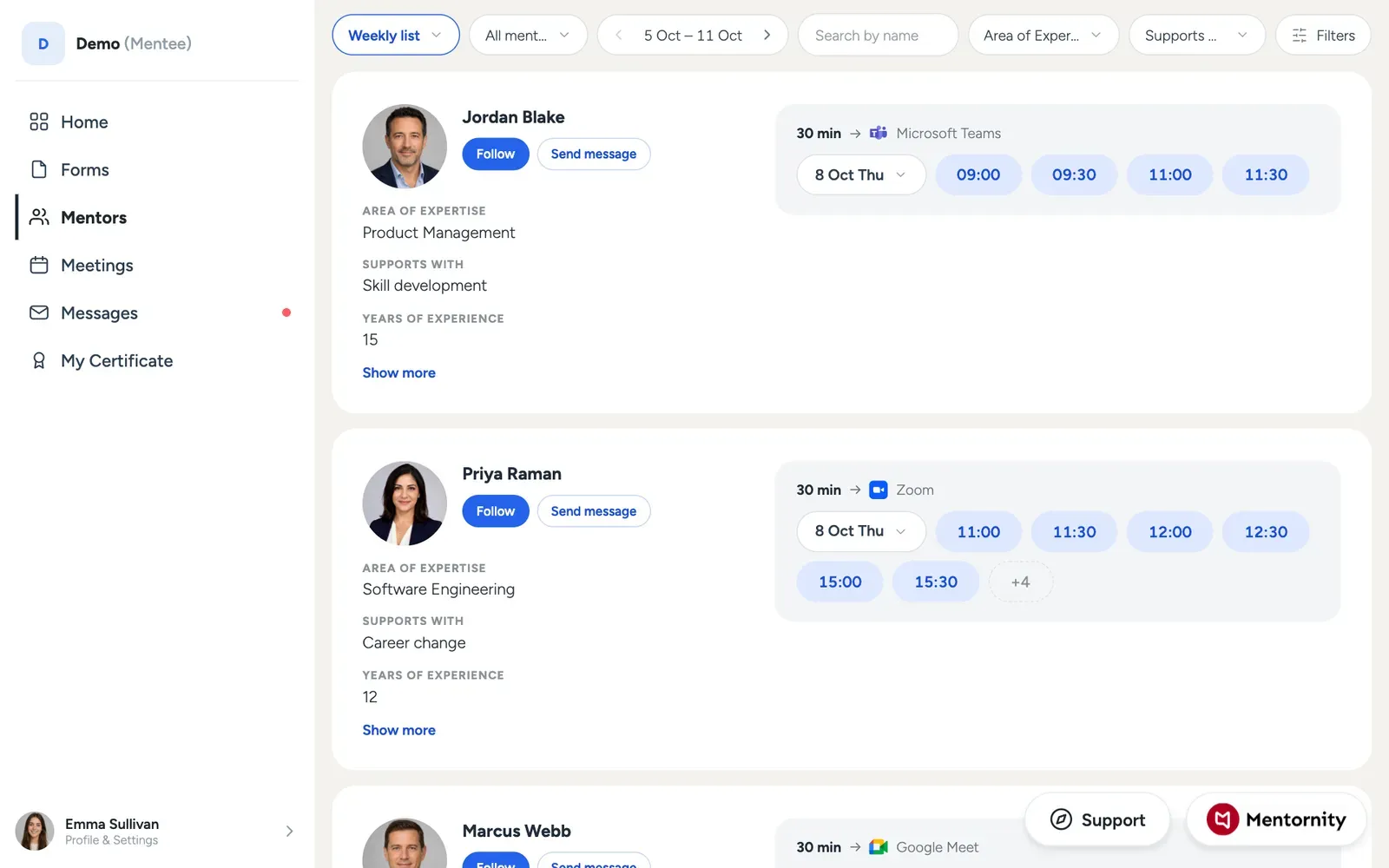 Mentornity supports several ways programs set this up, and your in-app guide tells you which one applies to you:
- Matched by the program team. The team selects your mentor directly; you don’t choose or request anyone yourself.
- You request, the program team approves. Browse the mentors list, send a request to one that fits what you’re looking for, and the program team confirms it.
- You request, the mentor approves. You select a mentor, and the match starts once that mentor accepts your request.
- Instant match on selection. You select a mentor and the match starts immediately, with no approval step.
- Pool, no formal matching. There is no matching relationship at all. You book time directly from any eligible mentor’s published availability, one meeting at a time.
If your program limits how many mentors you can select or be matched with, your in-app guide shows the limit.
To end or change a match, there is no self-service action on the mentee side: open the support form and describe what you need, and the program team will handle it.
How to find a mentor covers choosing well once you can see the list, and questions to ask a mentor helps you make the most of the request message or the first conversation.
How do you book a meeting?
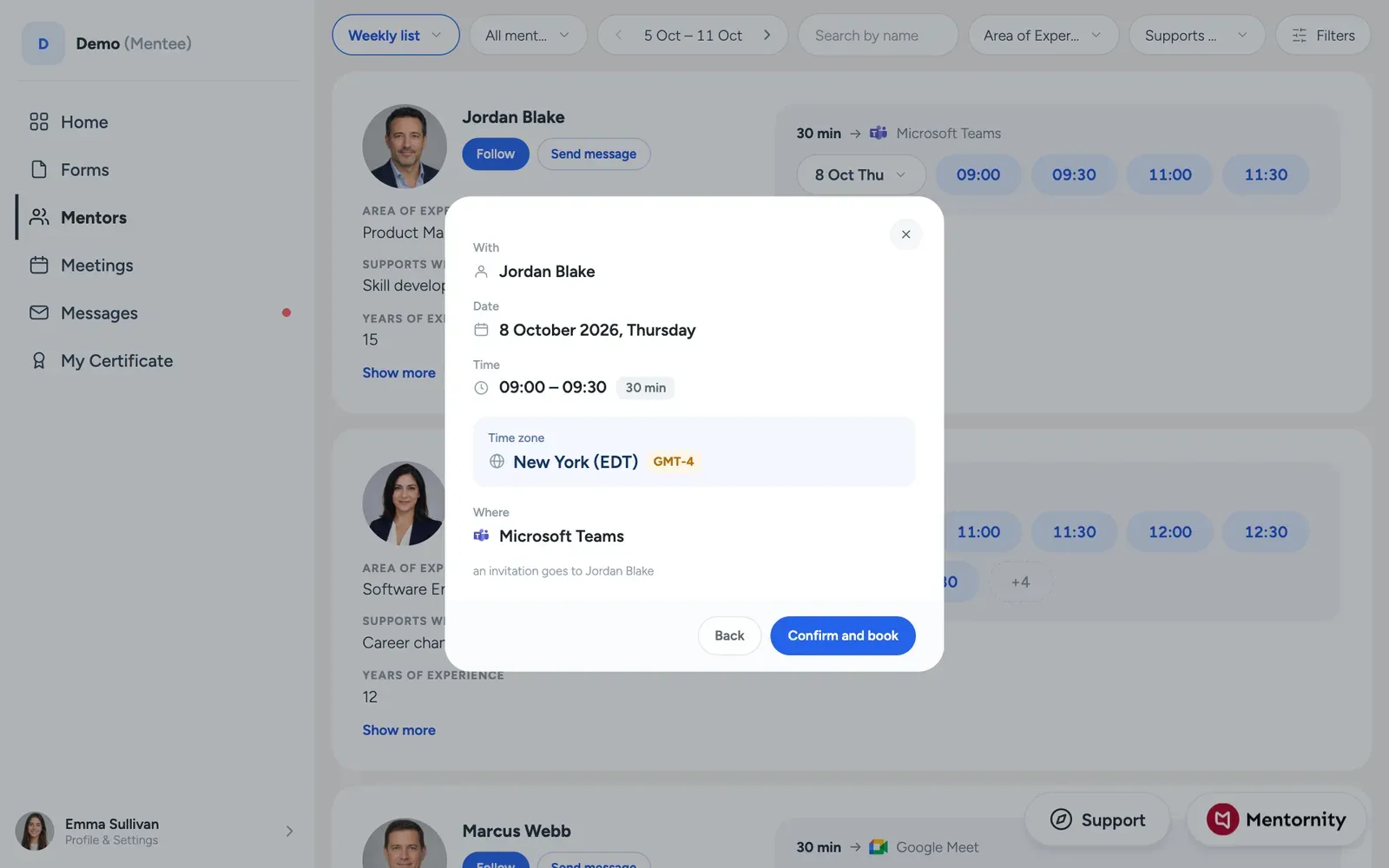 Mentees do not create their own availability; only mentors publish open slots. How you get a meeting on the calendar depends on your program:
- If your mentor publishes availability, open their profile and pick a suitable time from their open slots. In pool programs this is how every meeting is booked: open a mentor’s profile from the Mentors page and book from there.
- If you can create meetings directly, open your mentor’s profile and use create meeting to pick a time.
- If neither applies but mentors can create meetings, your mentor creates the meeting and you receive an email invite and reminders; you don’t need to do anything to get it on the calendar.
- If none of the above apply, the program team arranges meetings on your behalf.
If you can see your mentor’s profile but there are no open slots to book, and you can’t create a meeting yourself, message your mentor and ask them to add availability or to set up a meeting with you directly.
Once a meeting exists, you or your mentor can reschedule it with Update or cancel it with Cancel, and the other side is notified. If you don’t see those buttons, your program’s rules don’t allow that action for you on that meeting.
How do you choose a video or meeting option, and what if it breaks?
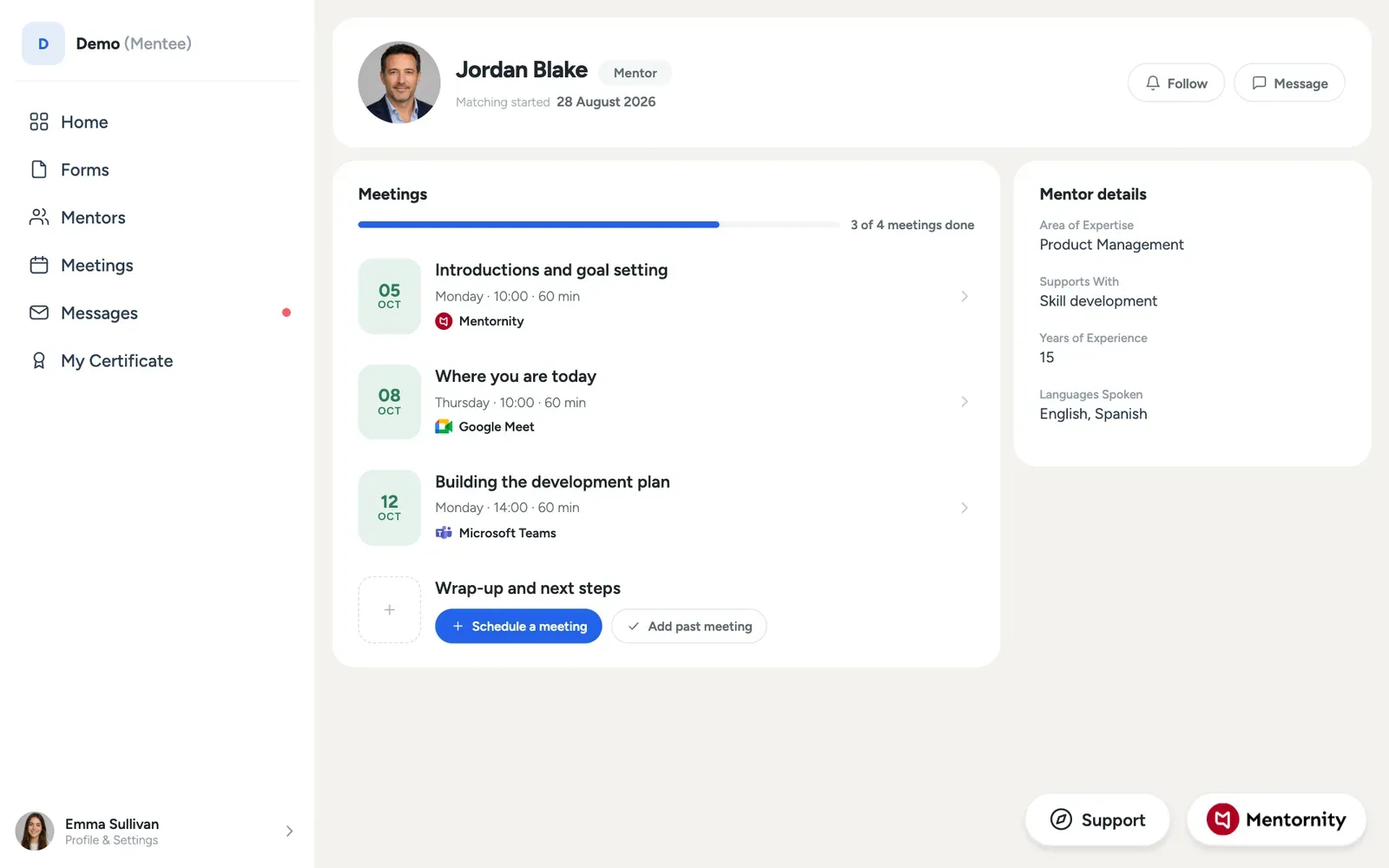 Whoever creates the meeting picks where it happens: Mentornity’s own in-platform video, Jitsi Meet (no account needed), Zoom, Google Meet, Microsoft Teams, or a custom location such as an address or an external link. If your mentor uses Zoom, Google Meet, or Teams, that provider needs to be connected on their end; you don’t need to connect anything yourself to join a meeting, except possibly a free account for a third-party tool like Jitsi if that tool asks for one.
If the account behind the chosen location is disconnected, the meeting still gets created, just without a link rather than being blocked. If you open a meeting and there’s no link, message your mentor rather than assuming the meeting was canceled; once they reconnect their account, upcoming meetings get their link.
Your own time zone setting matters here too: open the account menu and check Date, time & language for your time zone, time format, and date format so a booked meeting shows up at the correct local time for you.
How do you prepare for and get the most from a meeting?
Preparation is largely on you, since the meeting is about your situation and your mentor can only work with what you bring. If your program attaches a form to a meeting, for example a pre-meeting or post-meeting form, open it from the meeting page; a form you’ve already answered opens prefilled so you can review or update it rather than starting from scratch.
How to prepare for a mentoring meeting and how to set goals with your mentor go into this in more depth once you know how booking and forms work in the app itself.
How do you message your mentor?
Open your mentor’s profile and use Send message; messages also send an email notification, so your mentor doesn’t need to be watching the app. Whether you can message anyone in the program, only your matched mentor, or nobody directly depends on your program’s settings. If a message goes unanswered for a while, use the support form rather than escalating outside the platform.
What are tasks, posts, and certificates?
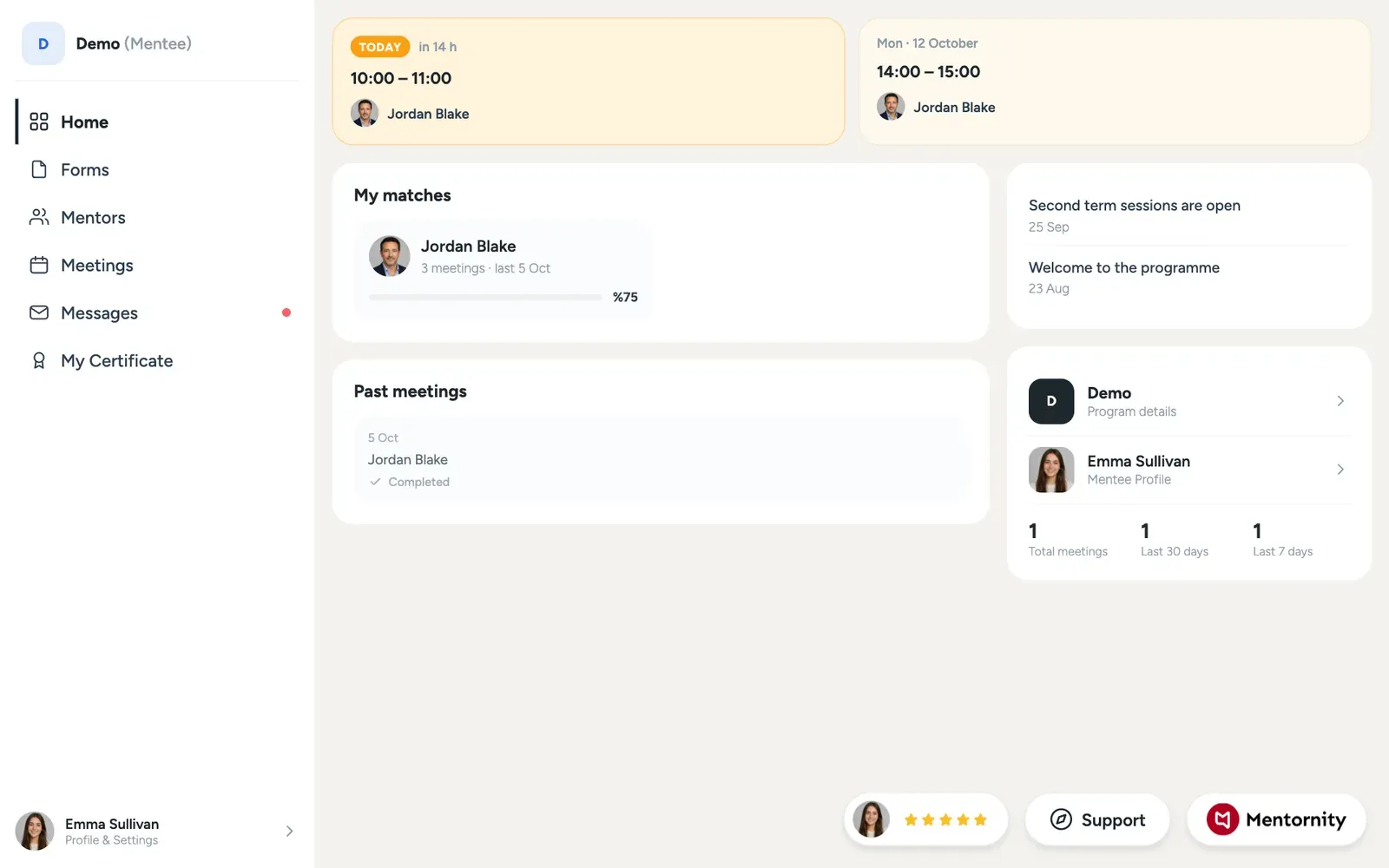 Tasks. If your program uses to-do lists, a Tasks card on your home page shows open items, and the full list opens from To-Do Lists in the menu. It’s a checklist for your own tracking, not a gate: an unfinished task never blocks anything in the app.
Posts. Program announcements appear in the Announcements area of your home page; open one to read the full post, which may include embedded media.
Certificates. If your program offers a certificate, the My Certificate page tracks your progress against the program’s requirements, for example sessions or forms completed, and shows a sample of the final design. Finishing every requirement updates your eligibility status, but it does not automatically issue the certificate: an administrator has to publish it before your certificate is available to you.
In a startup or group program
If your program groups mentees into teams, often called a startup, company, or group depending on how the program has renamed it, a few things work differently from one-to-one mentoring:
- A Groups section appears in your in-app guide. You create your group during the welcome steps or join one with an invite, and you edit the group’s profile and add a teammate who is already a program member from Profile settings. If the person is not in the program yet, use the support form.
- Leaving a group has no self-service action. If you need to leave, send a support request; the program team handles it from their side.
- Meetings happen at the group level. A meeting booked with your mentor is created on behalf of the whole team: every member is invited, and meeting notes are shared with the group rather than one-on-one.
- To message one teammate privately rather than the whole group, open the group’s profile first, then that person’s individual profile from within it.
A startup program is the same group-mentoring setup described throughout this guide, with the role and group labels renamed to fit; matching, booking, forms, messaging, tasks, and certificates all work as described above.
For a full comparison of Mentornity’s program setups, see mentoring program models. For the mentor’s side of the same app, see the Mentornity mentor guide. For more on video and calendar options, see video meetings in Mentornity.